Change Your PLDT WiFi Password — Step by Step, on Your Phone or PC
Yes, you can do this yourself — no technician, no PLDT visit, no PC required. The job takes about two minutes once you are logged in. Getting logged in is where most PLDT users actually get stuck, so this page gives the login the same weight as the change.
Connect to your PLDT WiFi, open 192.168.1.1 in your browser, log in as admin (password 1234, or the pair on the modem’s sticker), open WLAN → Security, type the new password in Pre-shared Key, and click Apply. Then reconnect every device.
Before You Start — the Sticker, and the Three Passwords You Must Not Mix Up
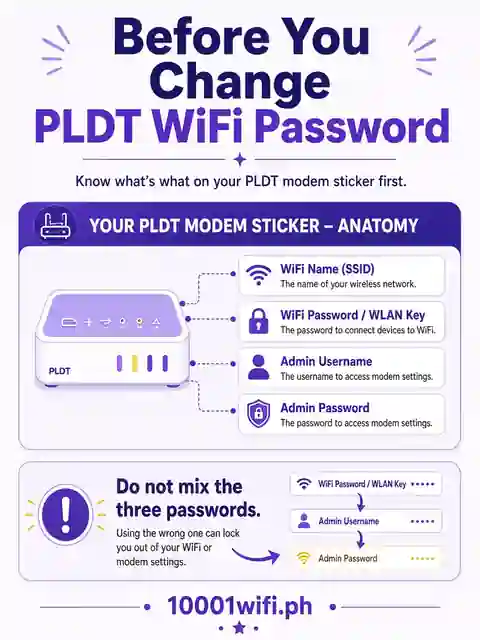
Take one photo of the sticker on the bottom or side of your PLDT modem before you touch anything. It carries the model, your current WiFi name and key, and on many units the admin pair — it is the authority for your specific box, above any table on any website, including this one.
And keep three different passwords separate, because mixing them up is the hidden cause of most failed attempts:
- The WiFi password joins devices to your network. It is the one you are here to change.
- The admin password opens the modem’s settings panel at 192.168.1.1. You need it to make the change, and it is not the WiFi password.
- The PLDT account password signs you into PLDT’s app and support. It opens neither of the two above.
Change the PLDT WiFi Password in 6 Steps (192.168.1.1)
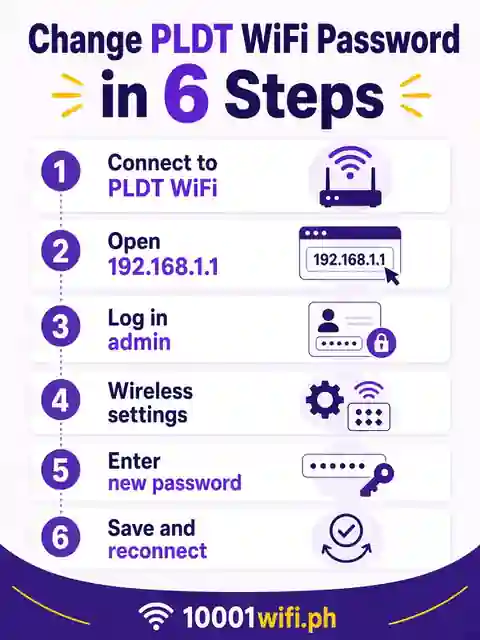
The steps are written for a phone — an Android phone on Chrome is what most PLDT users hold — and every step is identical on a PC browser.
Step 1–2 — Connect to the PLDT WiFi and Open 192.168.1.1
Connect the phone or computer you are using to your PLDT WiFi (the name on the sticker, unless it was already changed). Then open your browser and type 192.168.1.1 in the address bar — the exact digits, with dots. (If you typed it with letters — “192.168.l.l” — that is an L, not a 1; addresses are numbers only.)
PLDT’s panel loads over a private connection, so your browser will probably warn you: “Your connection is not private.” On your own modem, at the address you typed, this is expected — tap Advanced → Proceed to 192.168.1.1 and the login form appears. Never proceed past this warning on a site you reached from a link or an ad.Step 3 — Log In With the Pair That Is Live on Your Unit
Username: admin. Password: 1234 — PLDT’s factory pair, the one in PLDT’s own guide. On a line that was already activated — by you, or by the installing technician — it often does not work, because PLDT makes the first person who logs in replace it (see the admin password section below; this is normal, not a fault). If 1234 is rejected, try the pair printed on your sticker before anything else.- PLDT’s panels come in three layouts. Find yours by what you see — you only need one. Use the tabs below.
Step 5 — Set the New Password (and the WiFi Name) — Both Bands
Type it into the Pre-shared Key / Passphrase field. On Layout B with bandsteering off, repeat it in the second band’s tab with the same new password — change only one band and the old password keeps working on the band you forgot, which is exactly how “I changed it but the old one still connects” happens. The same screens carry the SSID Name field — if you want a new WiFi name as well, this is the moment: name and password are changed in the same sitting, in the same place. If the panel refuses your password, read the rule printed on that screen — each panel enforces its own length and character rules.Before you press Apply: write the new password down, or keep it visible on another device. The moment you save, the modem drops every connected device — including the phone in your hand. That is the change working, not breaking.Step 6 — Apply, Then Reconnect Every Device
Click Apply (Layout A: Apply Changes and Save). One check that saves a repeat visit: if your panel shows both an Apply and a Save button, press both — on panels built that way, Apply alone is temporary and the old password returns after a reboot. Give the modem a few seconds to restart its WiFi. Then reconnect: the phone or computer you are holding first, using the new password — then TVs, cameras, and everyone else’s phone. Anyone who skips this order gets to hear “the internet is broken” one device at a time.
Step 4 — Find the Password Field: Basic → WLAN → Security (Pre-shared Key)
Go to Basic → Wireless LAN (WLAN) Settings, then Security. Set Encryption/Security Mode to WPA2-MIXED if it isn’t already, and find the Pre-shared Key field. That field is your WiFi password.
Step 4 (Newer Panels) — Network → Bandsteering or the 2.4G / 5G Advanced Tabs (Passphrase)
Go to the Network tab. If Bandsteering is switched on, there is a single Passphrase field on that screen — that is your WiFi password for both bands at once. If bandsteering is off, open the 2.4G Advanced and 5G Advanced tabs — each has its own Passphrase field, and you will change both in Step 4.
Step 4 (DSL-Era Panels) — Setup → Security (Pre-Shared Key), and Press Save Too
Go to Setup → WLAN Setup → Basics for the WiFi name, and Setup → Security for the password — set WPA2 Mixed and type the new password in Pre-Shared Key. These panels have two commit buttons, and you need both: Apply Changes, then Save — press only Apply and the change silently reverts the next time the modem restarts.
Done. If you never got past the login in Step 2, do not keep guessing pairs — the next section is the one you need.
PLDT Admin Password — admin/1234, the Sticker Pair, and Why Yours Says “Wrong Password”
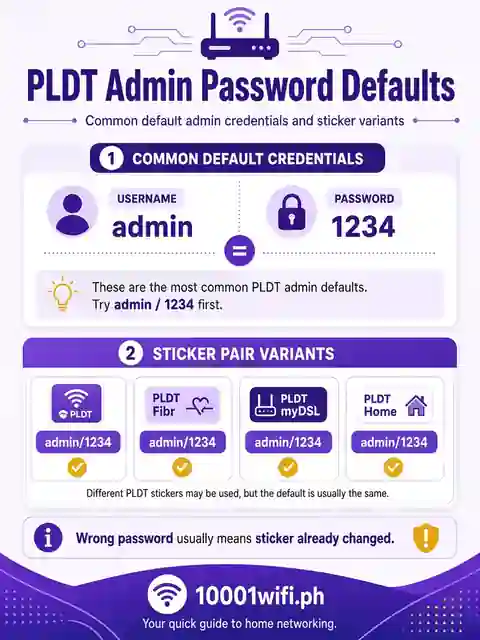
| Pair | Where it comes from | Status | When it works |
|---|---|---|---|
| admin / 1234 | PLDT’s factory default (PLDT’s own guide) | Official | A brand-new or freshly reset modem, before first login |
| The pair on your sticker | Printed for your specific unit | Unit record | Whenever it differs from the factory pair |
| The pair set at first login | Chosen by whoever first opened the panel — you, a family member, or the installer | Household | Every activated line, until it is changed again |
| Legacy ADSL-era pairs | Circulate in forum lists from PLDT’s DSL generation | Described only | Old ADSL units only — they will never open a Fibr modem, and this page doesn’t print them |
Reason 1 — First login retired the default
The first time anyone opens a PLDT panel, the dashboard itself prompts them to change the default username and password (Account Management). From that moment, 1234 is dead on that modem — by design. Most “the password is wrong even though it’s right” reports are this: the pair being typed was right, once.
Reason 2 — The installer set it
Activation technicians commonly complete that first login. If the line was installed for you, the live admin pair may be one the technician or PLDT’s record holds — ask whoever arranged the installation, or use the recovery paths below.
Reason 3 — You are typing the WiFi password
It joins devices; it does not open the panel. The two passwords look interchangeable and are not.
Reason 4 — A legacy pair on a Fibr unit
Forum lists mix ADSL-era pairs with Fibr defaults. On a Fibr modem they simply fail — and some of the pairs those lists circulate are not subscriber defaults at all, but the provider-side tier’s, which is not yours to use and not ours to print.
The other login address — 192.168.1.1/admin/login.asp
PLDT’s FiberHome panels also answer at https://192.168.1.1/admin/login.asp — if the plain address shows an error or a blank page, type that full address instead, and use Advanced → Proceed past the privacy warning as before.
Logged In, but There’s No WiFi Menu Anywhere? — the Web Admin Switch
A smaller group of Fibr owners hits a stranger wall: the login works, but the panel that opens is a bare Device Management screen — no WLAN, no Wireless, nowhere to change anything. On some FiberHome units (TechPilipinas’s guide names the RP2646, RP2662 and RP2684 models) the full admin panel is switched off by default: the modem carries a Web Admin Switch setting, and until it is enabled, the subscriber dashboard — the one with the WiFi settings, which on these units also answers at 192.168.1.1/fh — is simply not served.
Change It in the PLDT App Instead — When the App Works and When It Can’t
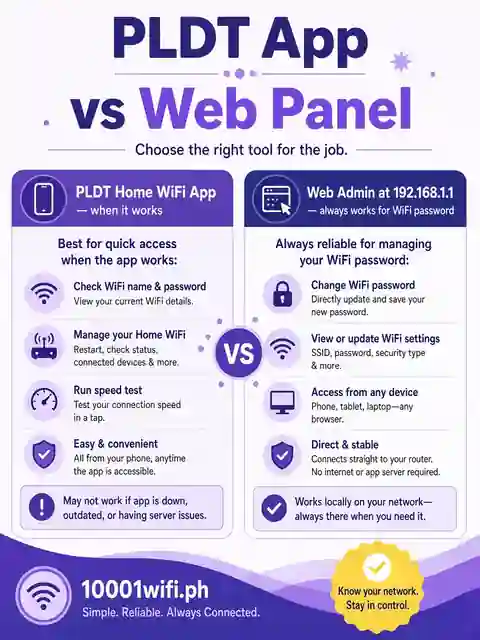
PLDT’s own app can change your WiFi name and password from your phone — of the big Philippine ISPs, PLDT is the one whose app actually carries this setting. Use it when the panel login is lost but you can still sign in to your PLDT account in the app: the account password is a third, different credential, and for many households it is the one they still have.
Its boundary: the app cannot rescue an account login you’ve also lost, and it does not show you the panel-only settings. If both the admin pair and the account login are gone, the recovery section below is your route.
Changing Your PLDT WiFi Password for the Second or Third Time — Same Steps, Different Login
Nothing about the change itself is different the second or third time: same address, same menus, same field, same Apply. What changes is the login. The first time, the factory pair (or the sticker) got you in — and that first session replaced the pair. Every later change starts with the admin password set back then, not with 1234.
So if you changed your password before and now “can’t enter,” you are not locked out of the change — you are locked out of the panel, and the pair you need is the one created at that first login. If nobody in the house remembers it, go straight to the recovery section: guessing pairs is the slow road, and PLDT Cares is the fast one.
Forgot the PLDT Admin Password — Every Recovery Path Before Reset
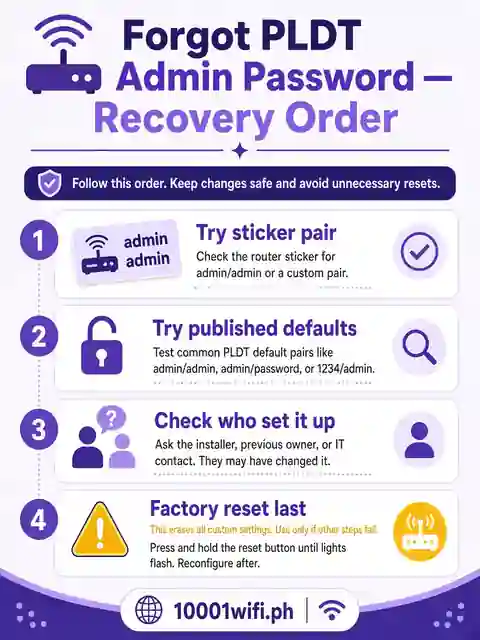
In order, cheapest first:
- The sticker pair — if you never tried it because 1234 “should” work, try it now (photo from Before You Start).
- Ask whoever had the line installed or whoever set the modem up — the first-login pair was chosen by a person, and that person often still has it in a message or a notebook.
- The PLDT app — sign in with the account password and change the WiFi password there (previous section).
- PLDT Cares (Messenger) or 171. PLDT support can change the WiFi password for the verified account holder — subscribers in exactly your position report PLDT doing it for them after a Messenger chat when the panel login was lost. Have the account name and the sticker photo ready.
No WiFi password either? Reach the panel by LAN cable
If you can’t even join the WiFi to start, plug a laptop into any LAN port on the modem with an Ethernet cable. The panel at 192.168.1.1 answers over the cable with no WiFi password at all, and the steps proceed as written.
Factory reset, last resort — the 10-second hold, and why you call 171 first on Fibr
The ritual, when it comes to it: modem powered on, press a pin into the recessed Reset hole and hold about 10 seconds until the lights blink; wait roughly five minutes for a full reboot; join the factory WiFi name on the sticker; open 192.168.1.1 and log in with the factory pair — and this time, note down the new admin password the panel makes you set.
PLDT WiFi Password Questions — Answered Short
How do I login to 192.168.1.1 PLDT WiFi Admin?
Connect to the PLDT WiFi, type 192.168.1.1 in the browser’s address bar, pass the privacy warning (Advanced → Proceed), and log in as admin with the pair that is live on your unit — factory 1234, the sticker pair, or the one set at first login.
How can I change my PLDT Home password in 2026?
Exactly as on this page: panel or PLDT app. Log in at 192.168.1.1, WLAN → Security → Pre-shared Key (or Network → Passphrase on newer panels), set the new password, Apply, reconnect every device.
Can I change my WiFi password myself?
Yes. The account holder can change it in the panel or the app, free, in about two minutes — no technician and no service visit. The only thing you cannot do yourself is recover a lost admin pair without PLDT’s help or a reset.
How do I change my home router WiFi password?
On PLDT, that is this page’s six steps. The shape is the same on any router — open its gateway address, log in to the panel, find the WiFi security field (Pre-shared Key / Passphrase), save, reconnect — but the address, pair, and menus are PLDT’s here.
I changed my password, but the old one still connects some devices. Why?
Almost always the second band: with bandsteering off, the 2.4 GHz and 5 GHz networks hold separate passwords. Set the new password in both bands’ tabs (the steps above), Apply, and the old one dies everywhere.
Is admin/1234 the PLDT admin password?
It is the factory password, printed in PLDT’s own guide. On an activated line it usually no longer works, because the first login replaces it. Your live pair is the sticker pair or the one set at that first login.
Sources and verification status for every pair and path on this page: PLDT’s official change-password guide and Customer User Guide (admin/1234, WLAN → Security → Pre-shared Key, first-login prompt); wikiHow’s PLDT guide (Network-tab layout, bandsteering); tekingpinoy’s Fibr walkthrough (per-band Advanced tabs, Passphrase fields); TechPinas’s DSL-era guide (Setup-tree layout, the Apply-then-Save permanence rule); TechPilipinas’s Fibr guide (the Web Admin Switch mechanism and the RP-series models — its provider-tier credentials are not reproduced); subscriber reports in r/InternetPH (the /admin/login.asp surface, PLDT Cares remote change). Legacy ADSL-era pairs are described, never printed. This page publishes no ISP master or “super admin” credentials — recovery runs through the account holder’s own paths only.