 10001wifi.ph
Change Your Globe WiFi Password — 192.168.254.254, Step by Step (No Reset Needed)
Connect to your Globe WiFi, open 192.168.254.254 in your browser, and log in with the username and password on the modem’s sticker. Open Advanced → WiFi → WiFi Security Settings → Edit, type the new password, and press Save. Then reconnect every device.
On a Globe At Home fiber modem, the WiFi password changes at 192.168.254.254: connect to the Globe WiFi, log in with the username and password on the modem’s sticker, and edit the password under Advanced → WiFi → WiFi Security Settings, then Save.
The field’s name depends on the unit — WiFi Security Settings on fiber modems, WPA pre-shared key on the LTE B310As-938, WLAN key on the B315s-938, Pass Phrase on ZLT units. No reset is needed to change a WiFi password, and the GlobeOne app cannot do it — the modem panel is the only route.
One correction before anything else, because it costs Globe users money: changing your WiFi password does not require a reset. The reset button is only for a forgotten admin password — and even then there are free steps first, because subscribers report Globe charging ₱500 to do the reset for you.
Typed the Address and Got Nothing? Check the Form
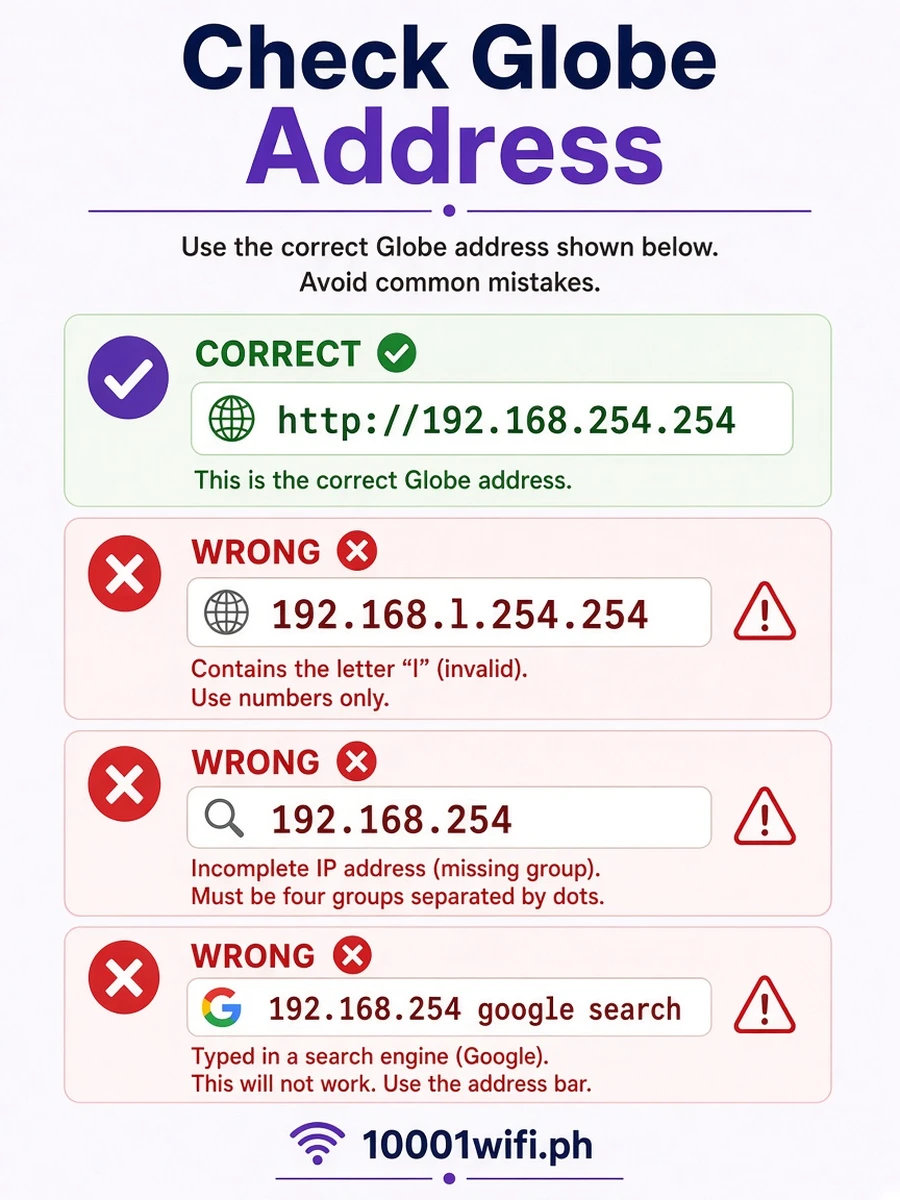
This address is mistyped more than any other in the Philippines — the spaced version alone is searched 60,000 times a month. Three shapes of mistake: letters for digits (“192.168.l.254.254” uses the letter L — addresses are digits and dots only) · a missing group (“192.168.254” is short one group — the real address has four: 192.168.254.254) · wrong digits (“192.268.254.254”, “192.168.264.254” — read it back group by group: 192 · 168 · 254 · 254). Type it bare in the address bar — no “http”, no “www”, not into a search box. Or check your form here:
Before You Start — the Sticker on the Back, and One Thing to Know About This Address
Photograph the sticker on the back or bottom of your Globe modem. It carries your unit’s WiFi name and key and its admin username and password — for Globe, the sticker is the authority, above any default printed on any website, including this one.
And know what 192.168.254.254 is: a page inside your own modem. It answers only when you are connected to your Globe network at home — it is not a website, and nobody can open it from outside your house. That is why “changing your password online,” from somewhere else, is impossible by design: the change always happens here, on the panel, at home.
Change the Globe WiFi Password in 6 Steps
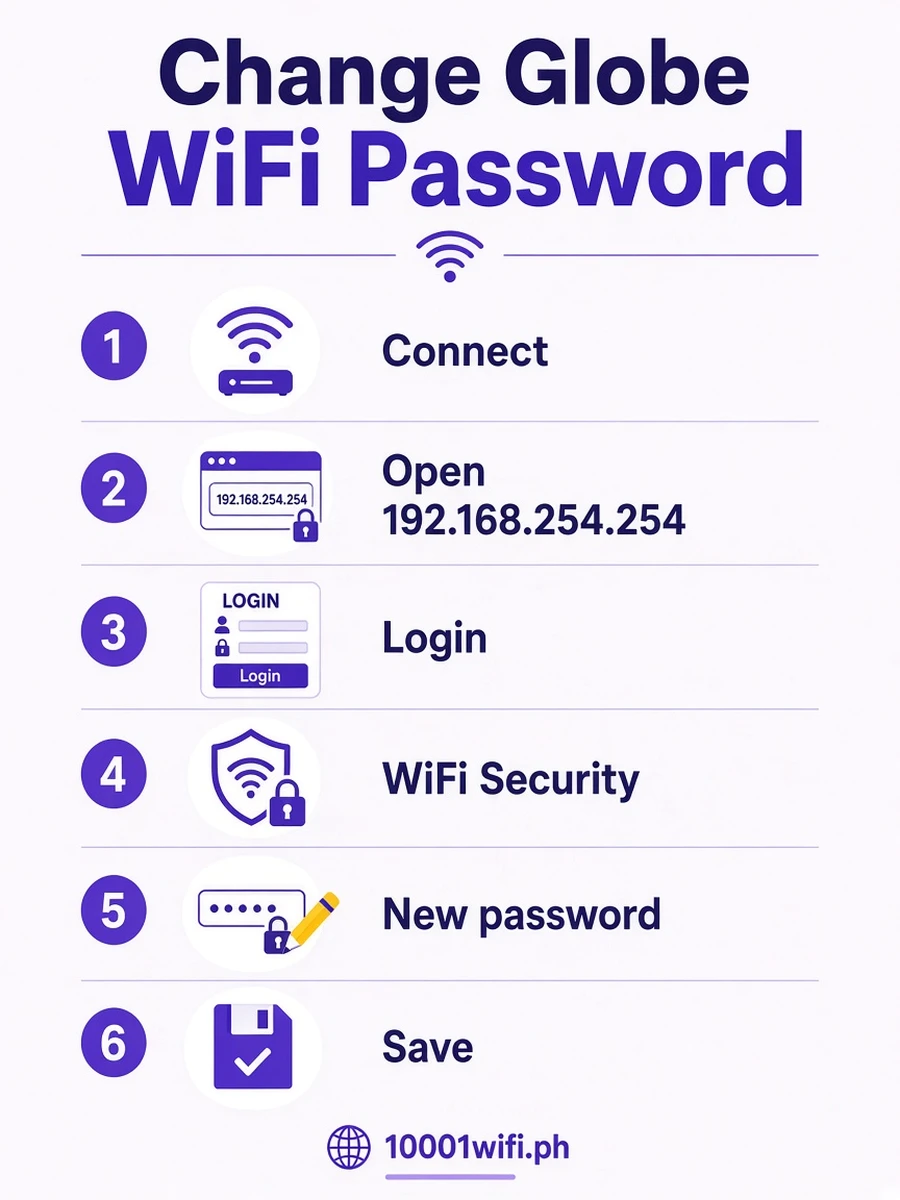
Written for a phone — Android or iPhone — and identical on a PC.
Steps 1–2 — Connect and Open 192.168.254.254
Connect to your Globe WiFi (the name on the sticker, unless already changed) and type 192.168.254.254 in your browser’s address bar. The modem’s page loads.
Phone rendering badly — tiny text, menus missing? Globe panels are built for desktop screens. In Chrome, tap the three-dot menu → Desktop site (Request Desktop Site); the panel redraws in its full layout and every menu below appears where this guide says it is.Step 3 — Log In (Top-Right) With the Sticker Pair
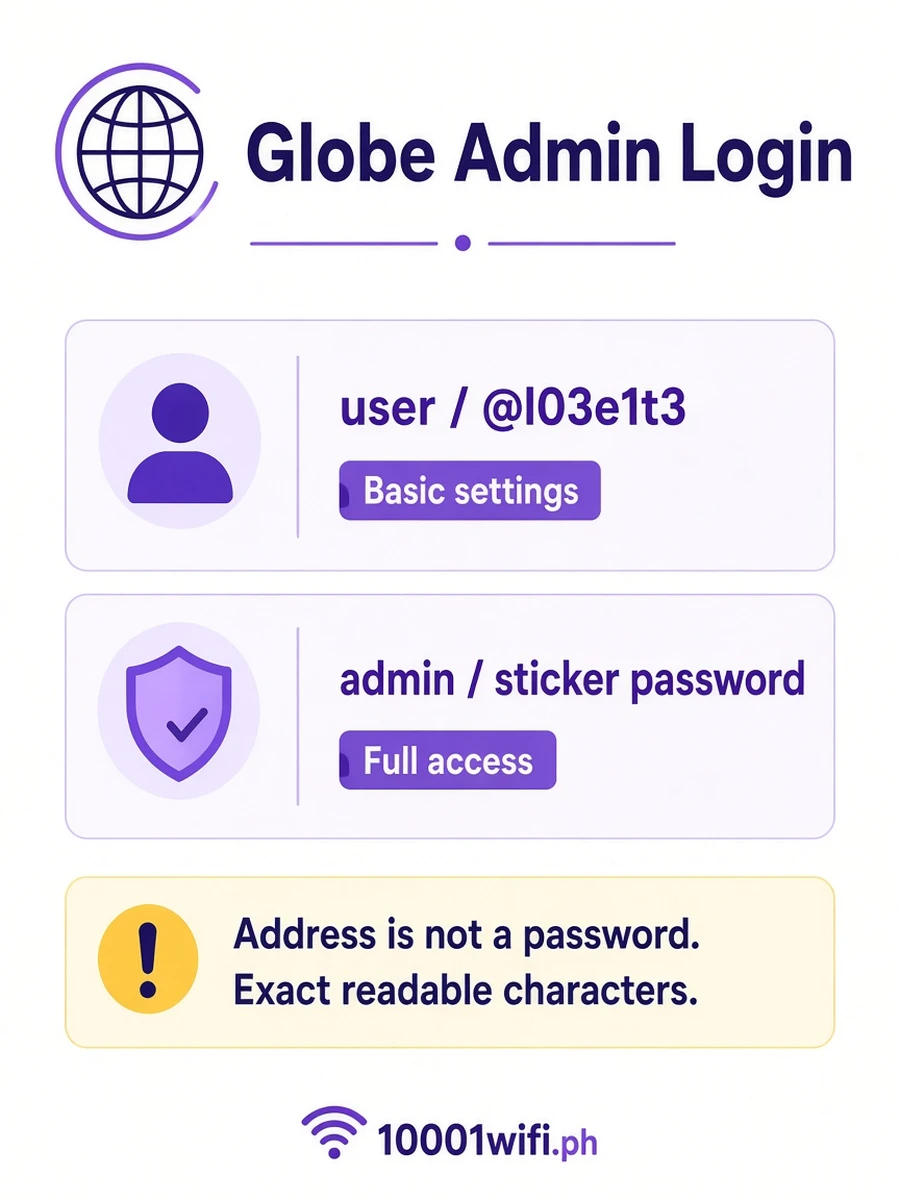
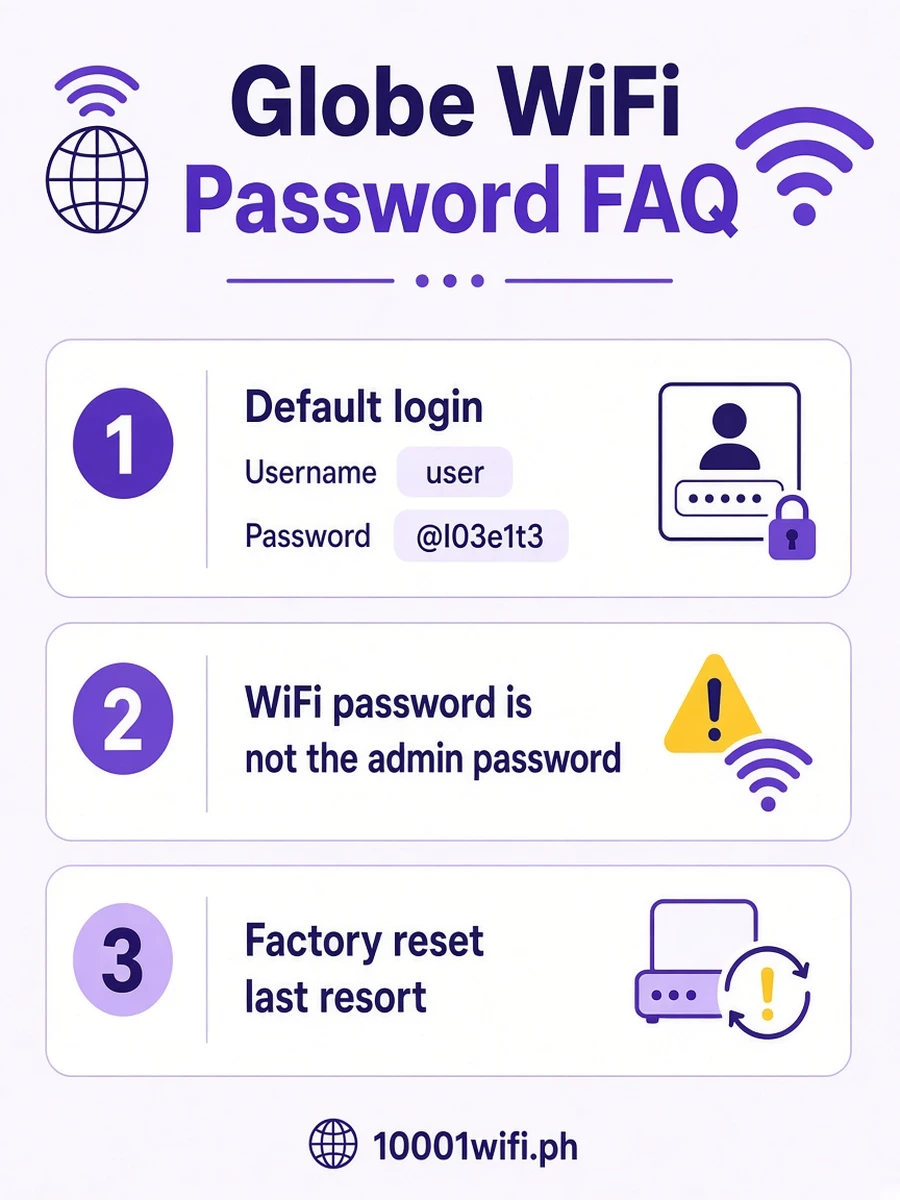
Tap Log in at the top-right of the page and enter the username and password from your sticker. If you don’t have the sticker pair handy, the pair published for most Globe routers is username user, password @l03e1t3 — the sticker overrules it wherever they differ, and if a previous owner or the installer changed the pair, only the changed pair works (see the login section below).Step 4 — Advanced → WiFi → WiFi Security Settings → Edit (Globe’s Own Path)
On Globe’s documented panel: open the Advanced tab → WiFi → WiFi Security Settings, and click the Edit button at the right side of the screen. The name and password fields open for editing.Step 4 on Prepaid and LTE Modems — the Dashboard, the WLAN Tree, or the Quick Settings Wizard
Globe’s prepaid and LTE modems wear different panels from the fiber one — find yours:- Huawei B310As-938 (Home Prepaid WiFi) and similar dashboards: click Wi-Fi Settings in the top menu. Type the new password into the WPA pre-shared key field (tick Show password to check your typing) and the name into the SSID field, then Apply.
- Huawei B315s-938 (no Wi-Fi Settings link): click Advance → WLAN → WLAN Basic Settings, and type the new password into the WLAN key field, then Apply. Use this same tree on the B310As if your unit runs several SSIDs — each network has its own key field here.
- ZLT units (P25, S10G) and wizard-style panels: open Quick Settings → set the Network Name (SSID) → Next → keep the security mode on WPA/WPA2 → type the new password into the Pass Phrase field → Next → Apply.
- A panel with no visible menu at all: tap the icon of nine small squares (upper or lower corner) → Wi-Fi Settings → Basic.
Step 5 — Type the New Password (and Name) — Both Bands
Type your new password into the WPA Pre-Shared Key / Password field. Change the SSID field in the same screen if you want a new WiFi name — name and password belong in one sitting. Dual-band units hold a separate password per band (2.4 GHz and 5 GHz): set the same new password in both bands’ screens. Change only one and the old password keeps working on the band you skipped — the classic “I changed it but the old one still connects.” If the fields won’t let you type, you skipped the unlock: go back and click Edit first.Before you press Save: write the new password down. Saving restarts the modem briefly and disconnects every device — including the phone in your hand. That is the change working, not a fault.Step 6 — Save, Wait for the Restart, Reconnect in Order
Click Save (some skins: Apply). On the prepaid/LTE dashboard the browser may hang right after Apply — that is normal, not a failure: reconnect to the WiFi and reload the page to confirm. Wait for the modem’s WiFi light to settle, then reconnect: your own phone first, with the new password — then TVs, cameras, and everyone else in the house. Done.
Globe Admin Login — the Sticker Pair, user / @l03e1t3, and Why the Address Is Not Your Username
| Pair | Source | Status | When it works |
|---|---|---|---|
| The sticker pair | Printed on the back/bottom of YOUR unit | Unit record | The authority — try it first, always |
| user / @l03e1t3 | Published pair for most Globe routers (wikiHow) | Published | Units still on their factory pair |
| A changed pair | Set by whoever configured the modem before you | Household | Until it is changed again — no default opens the panel |
Unlike PLDT, Globe does not publish one official universal default — which is why every Globe answer starts with the sticker. If neither the sticker pair nor user / @l03e1t3 opens your panel, the pair was changed. The free recoveries are in the reset section below — read them before paying anyone anything.
“The Username Is the IP, Right?” — No: 192.168.254.254 Is the Door, Not the Key
The GlobeOne App Can’t Change Your WiFi Password — the Panel Is the Only Route
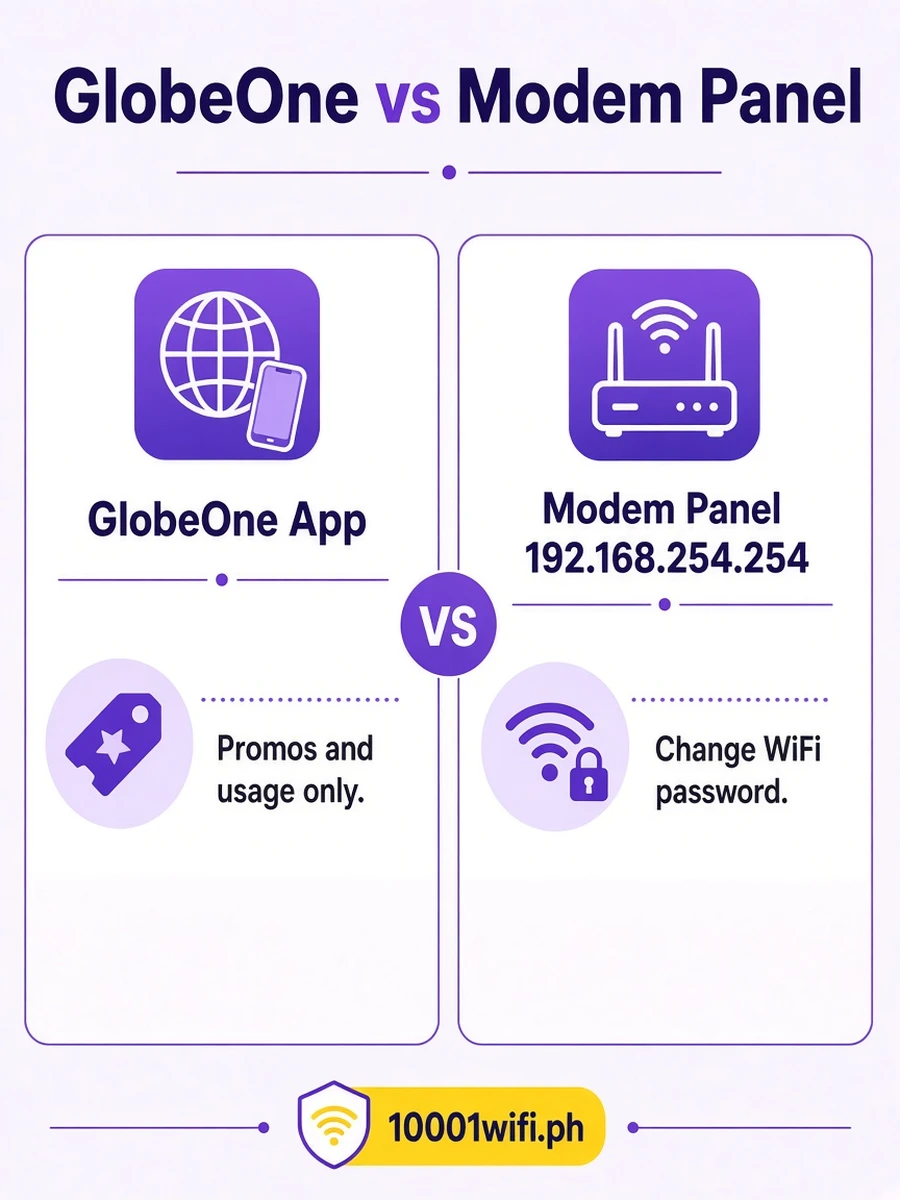
Many Globe users open the GlobeOne app first, because Globe’s own setup page points to the app beside its panel steps. Save the trip: GlobeOne manages your account — bills, promos, rewards — and it does not contain a WiFi password setting. (This is the opposite of PLDT, whose app does carry the setting.) For Globe, the browser panel at 192.168.254.254 is the only self-serve route, and it takes two minutes once you’re in.
One naming trap: older guides tell you to use a “Globe At Home app” to change the password. That was Globe’s previous app generation. The app Globe installs and updates today is GlobeOne — and GlobeOne has no WiFi password setting, so any guide sending you into an app for this job is describing the old one. The panel steps above are the current route.
Reset — Only for a Lost Admin Password: What It Wipes, the Reported ₱500, and the Free Paths First
Subscribers in Globe help threads report being quoted ₱500 for Globe to reset the WiFi when the admin pair was changed and forgotten — reported, not a price we can confirm — but either way, work the free list first:
- The sticker pair — the one most people never actually tried after a failed default.
- user / @l03e1t3 — the published factory pair for most units.
- Ask whoever set the modem up — household member or installer; a changed pair was chosen by a person.
- Globe support — through Globe’s official channels, as the verified account holder.
Globe At Home Prepaid WiFi — Resetting the Username and Password
Prepaid units follow the same logic: the panel pair is the sticker pair, and a reset restores exactly that pair and the factory WiFi key — at the same cost (all settings wiped).
For a prepaid modem, the change-password path is also Globe’s documented one: Advanced → WiFi → WiFi Security Settings → Edit → Save — it is printed on Globe’s own Home Prepaid WiFi setup page. Try the sticker pair before any reset; on prepaid units it is very often the pair that still works.
The Reset Ritual — Pinhole, Paperclip, Factory Pair
When nothing above works: modem powered on, straighten a paperclip or pin, press it into the recessed Reset hole and hold about 10 seconds until the lights blink. Wait for a full reboot.
Join the factory WiFi name on the sticker, open 192.168.254.254, log in with the sticker pair — and set the new WiFi password from the steps above, noting the admin pair down this time. If the line does not come back after a reset, that is the provisioning wipe — contact Globe support to have the line re-provisioned rather than resetting again.
Globe WiFi Password Questions — Answered Short
How do I change the Wi-Fi password on my Globe router?
Connect to the Globe WiFi, open 192.168.254.254, log in with the sticker pair, then Advanced → WiFi → WiFi Security Settings → Edit, type the new password, Save, and reconnect every device.
How do I change the password for the 192.168.254.254 address?
The address itself has no password — it is the modem’s door. What you change behind that door is the modem’s WiFi password (the steps above) using the modem’s admin pair to get in. Address, admin pair, WiFi password: three different things.
Can I change my WiFi password online?
Only in one sense: the panel is a web page — but a local one. It opens only from a device connected to your Globe network at home. There is no website, app, or remote page that changes it from elsewhere.
How do I log into 192.168.254.254 Globe at Home?
Connect to the Globe WiFi, type 192.168.254.254 in the address bar (digits only — no letter L, all four groups), tap Log in at the top-right, and use the pair on the sticker on the back of the modem.
I changed the password, but the old one still connects some devices. Why?
Almost always the second band: dual-band units hold a separate password per band. Set the new password in both the 2.4 GHz and 5 GHz screens (the steps above) and Save again. (If GlobeOne seems to show the old password — the app never held this setting; ignore it for this job.)
A guide told me to use the “gFiber app” — is that Globe?
No. gfiber.com and the “gFiber App” are Google Fiber, a US company — a namesake, not Globe Telecom. Its app and portal steps do not work on a Globe modem. Globe’s own prepaid fiber is called GFiber, which is exactly how the confusion starts; the panel steps on this page are the Globe ones.
Sources and status: Globe’s official Home Prepaid WiFi setup page (gateway, sticker pair, Advanced → WiFi → WiFi Security Settings → Edit → Save); wikiHow’s Globe guide (user / @l03e1t3 as the published pair for most routers, panel variants, Desktop Mode, wired fallback); Google AI Overview (field labels, restart behaviour); r/InternetPH subscriber reports (provisioning wipe, the reported ₱500 reset fee, address-as-credential confusion) — the fee is labelled reported wherever it appears.
Address-form volumes: Ahrefs export for Globe’s setup page, October 2026. Google Fiber (gfiber.com) material was reviewed and deliberately excluded — a different company’s service. This page publishes no ISP master or “super admin” credentials.