 10001wifi.ph
Change Your Converge WiFi Password — Huawei, ZTE or FiberHome, Step by Step
Check the brand on your modem. Huawei (most Converge units): open 192.168.100.1, log in as root / adminHW, and set both bands’ new passwords in Fast Setting. ZTE or FiberHome: open 192.168.1.1 instead. Then reconnect every device with the new password.
Converge passwords are set per modem brand, so the brand on the unit decides everything. Huawei units (most Converge modems): open 192.168.100.1, log in as root / adminHW, and set the new password for both bands in Fast Setting.
ZTE and FiberHome units: open 192.168.1.1, set the network name under SSID Settings and Submit, then the password in the WPA Passphrase field under Security and Submit again. Legacy Cisco units use 192.168.0.1. Whichever brand you have, the WiFi password and the admin password are separate credentials — this page changes the WiFi one, on both the 2.4 GHz and 5 GHz bands.
Converge is the one big Philippine ISP where the first step is not the password — it is the brand. Each brand is a different door, a different login, different menus. Every failed attempt starts the same way: right steps, wrong door. This page forks first, then walks your one path — on your phone, Android included.
Find Your Door First — Converge Modems by Brand: Address, Login, and Where the Password Lives
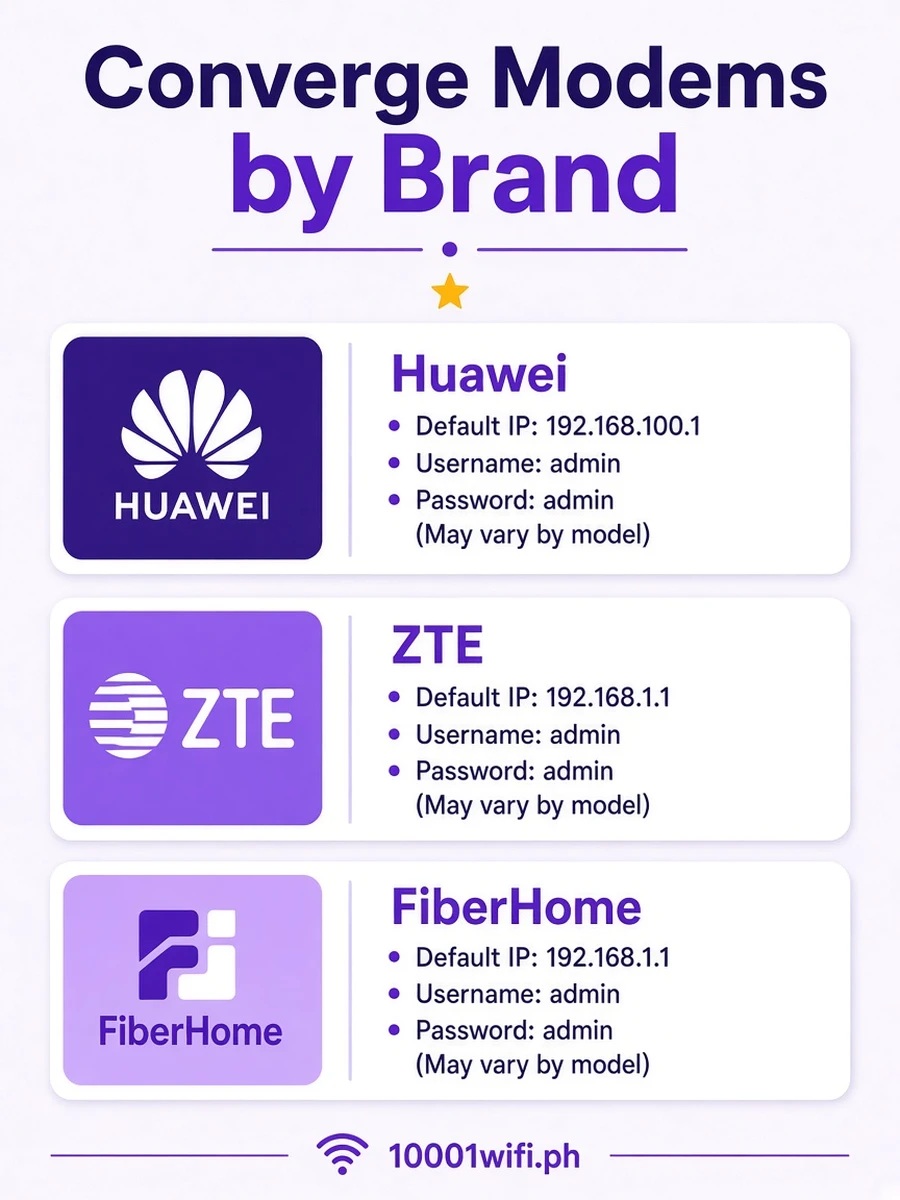
| Brand on the modem | Open this address | Admin login | Password field lives under |
|---|---|---|---|
| Huawei (EG/EchoLife models — most current units) | 192.168.100.1 | root / adminHW | Fast Setting wizard, or WLAN → Basic Network Settings → WPA PreSharedKey |
| ZTE (F670L and others) | 192.168.1.1 | The pair for your unit — see the matrix below | Network → Security Settings → WPA Passphrase |
| FiberHome | 192.168.1.1 | The pair for your unit — see the matrix below | Interface Setup > Wireless |
| Cisco (legacy units) | 192.168.0.1 | Sticker pair | Wireless tab → Pre-Shared Key |
Not sure of the brand? It is printed on the modem’s front and on its sticker — and the login page itself usually shows the maker’s name. Pick your row and stay in it: no address, pair, or menu from another row will work on your unit.
Before You Start — the Sticker Has the WiFi Key (WLAN Key), Not Always the Admin Pair
Photograph the sticker on the bottom or back of the modem. On Converge units it carries the default WiFi names and the factory WiFi password, labelled WLAN Key. That part, the sticker always has.
Change the Converge WiFi Password in 6 Steps (Huawei Fast Setting — the Path Most Units Use)
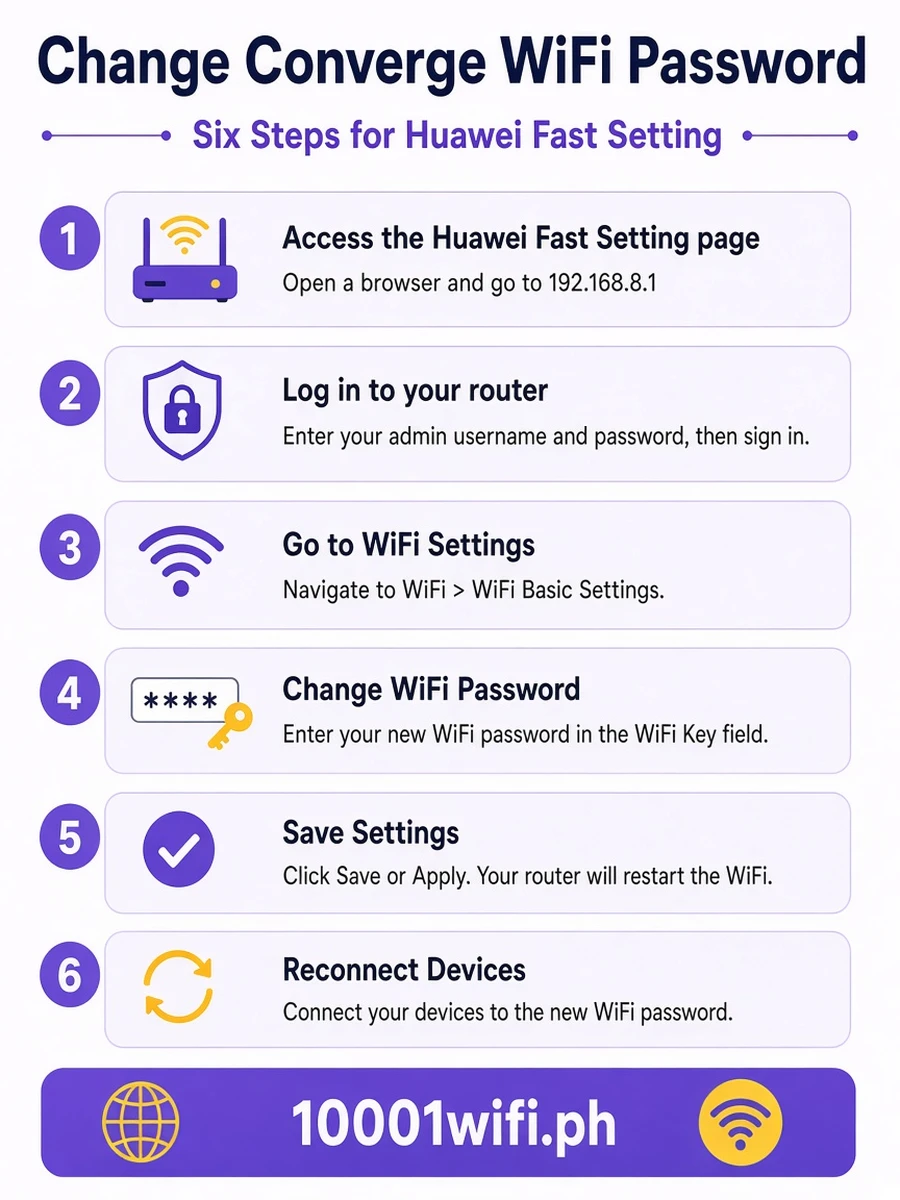
Huawei units are the bulk of Converge’s current fleet, so the main path is theirs. ZTE, FiberHome, and Cisco owners: your paths are in the next section — same shape, your menus.
Steps 1–2 — Connect and Open 192.168.100.1
Connect your phone or computer to the Converge WiFi (names like Converge_2.4GHz / Converge_5GHz, or your sticker’s SSIDs) and type 192.168.100.1 in the browser’s address bar. On a phone, rotate to landscape — the Huawei panel was designed for wide screens and crowds badly in portrait.
Page won’t open? You are most likely not connected to your own Converge network. Then, in order: type it with the prefix — http://192.168.100.1 — try another browser, or an incognito window.Step 3 — Log In as root / adminHW
Enter root as the User Name and adminHW as the Password — the published default admin pair for Huawei routers issued by Converge. These are the panel credentials, not your WiFi name and password. If the pair is refused, do not keep guessing: the failure order below is built for exactly that moment.Step 4 — Fast Setting: Both Bands’ Names and Passwords on One Screen
Inside the dashboard, click Fast Setting (upper right). The Wi-Fi configuration screen shows both bands at once: 2.4G Wi-Fi Name / 2.4G Wi-Fi Password and 5G Wi-Fi Name / 5G Wi-Fi Password. One screen, both networks — this wizard is why the Huawei path is the easiest of the three vendors.Step 5 — Set the New Password (and Name) — and the Admin Login Change the Wizard Offers
Type the new password in both password fields (uncheck Hide to see what you are typing). The wizard’s rule: 8 to 63 characters. Rename the networks in the name fields in the same pass if you want — this is the “password and username” change most Converge users mean: new WiFi name, new WiFi password, one sitting.
Click Next. The wizard then offers to change the admin login password itself (old password → new password → confirm). Doing it is recommended — root/adminHW is public knowledge, and anyone on your WiFi could otherwise try it — but write the new one down somewhere real, because a lost admin password on Converge ends at a reset.Before you finish: the moment the wizard applies, your current connection drops — including the phone in your hand. That is the change working. Note the new password before you leave the completion screen.Step 6 — Finish, Then Forget-and-Rejoin on Every Device
The completion screen confirms the new settings. Then, on every device: open WiFi settings, Forget the Converge network, and join again with the new password. Skipping Forget is why devices “keep reconnecting with the old password” — they are replaying the saved key, and the modem is rightly refusing it. Your own phone first, then the household’s, then TVs and cameras. If your goal was evicting freeloaders, this sequence — both bands changed, old key forgotten everywhere — is the whole job; a device that never learns the new password never gets back in.
Other Converge Modems — ZTE, FiberHome, and Legacy Cisco Paths
ZTE (F670L and Others) — 192.168.1.1 → Network → WPA Passphrase → Submit
Connect, open 192.168.1.1, and log in with your unit’s pair (the matrix below — ZTE pairs vary more than any other vendor’s). ZTE splits the job across two screens, and each needs its own Submit: first Network → SSID Settings, set the WiFi name, and click Submit; then Network → Security, type the new password in the WPA Passphrase field, and click Submit again.
Change only one screen and you get the classic half-changed ZTE — new name, old password (or the reverse). Repeat for the second band if your unit shows separate band screens, then Forget-and-rejoin every device as in Step 6 above.
FiberHome — 192.168.1.1 → Interface Setup > Wireless
Connect, open 192.168.1.1, log in, and look for Interface Setup > Wireless — FiberHome names its menus differently from ZTE despite sharing the address. The password field is the Passphrase / Pre-shared Key field on the wireless security screen. Save, then Forget-and-rejoin.
Legacy Cisco — 192.168.0.1 → Wireless → Pre-Shared Key → Save
Old Cisco units: open 192.168.0.1, log in (if the login info is lost, a documented tip for these units is to leave the username field blank and click Log in), open the Wireless tab, type the new password in the Pre-Shared Key field (tick Show key to check your typing), and click Save.
The Advanced Way — WLAN → 2.4G / 5G Basic Network Settings → WPA PreSharedKey
If Fast Setting won’t open or won’t save: sidebar Advanced → WLAN → 2.4G Basic Network Settings, type the new password in the WPA PreSharedKey field, click Apply — then repeat under 5G Basic Network Settings.
Fieldcraft that saves your session: change the band you are not connected to first, so the panel stays alive while you work. While you are there, the security settings above the key field are worth setting once: Authentication WPA2/WPA3 PSK+SAE, Encryption AES — the strongest combination the panel offers, and older devices still connect over WPA2.
Converge Admin Login — the Pair Matrix, the Failure Order, and the Master-Pair Trap
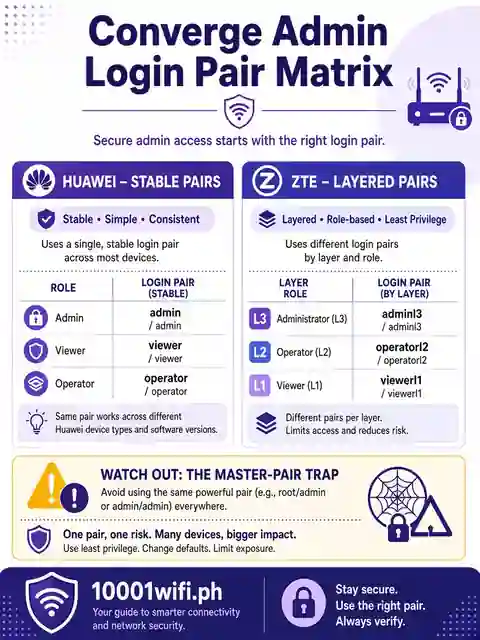
| Pair | Vendor / scope | Status |
|---|---|---|
| root / adminHW | Huawei — the standard admin account | Published default (TechPilipinas guide); works unless changed |
| Epadmin / adminEp · Epuser / userEp | Huawei EG-series (EG8041V5, EG8247H5 class) — admin tier / user tier | Reported by subscribers |
| user / user | ZTE / FiberHome fallback tip | Published tip (wikiHow) — far from universal |
| user1 / user2 — with 12345, user1234 or user12345 | FiberHome | Reported set (three guides concur) — the pairing varies by batch; try them in order |
| Your unit’s pair | ZTE especially; any vendor if changed | Unit record — sticker where printed; otherwise the installer’s record |
root / adminHW Didn’t Work? Work This Order
- Right door? adminHW at 192.168.1.1 (a ZTE/FiberHome address) fails forever — Huawei pairs belong at 192.168.100.1. Check the brand row again.
- EG model? Try the Ep-tier pairs (admin tier first) — EG-series units ship with them on many batches.
- Changed pair. Someone — installer, previous user, a family member following a guide (Step 5 above teaches changing it) — replaced the default. Ask, or go to the reset section.
- ZTE honesty: on the F670L, owners publicly report every circulated pair failing. ZTE pairs vary by batch; if the sticker, user/user, and the installer’s record all fail, your remaining paths are Converge support and the reset — in that order if the unit is rented and provisioned by Converge.
The “telecomadmin” Pair in Forums Is the Provider’s Master Account — Not Your Login
Changing It “Online”? The Converge SSPR Portal Resets Your Account Password, Not Your Router’s
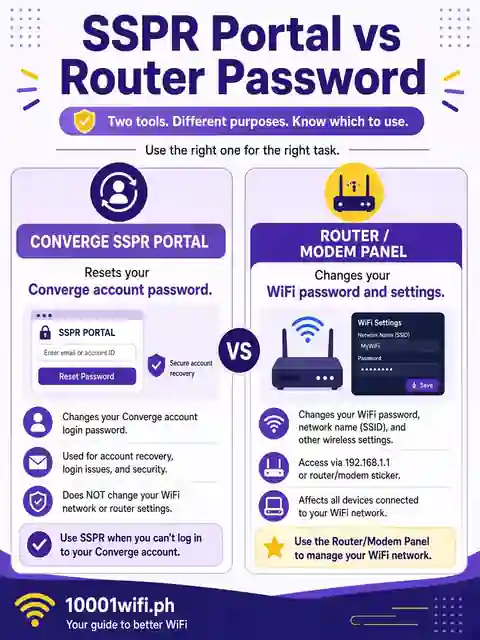
Converge’s own self-service site — sspr-v2.convergeict.com — ranks near the top when you search this task, which sends a steady stream of users to an authorization page that cannot help them. What SSPR resets is your Converge account password: the credential for Converge’s account services. It has no connection to your modem.
The router’s WiFi password changes in exactly one place — the modem’s own panel, on your own network, via the steps above. Three passwords, three doors: WiFi key (joins devices), router admin (the panel), Converge account (SSPR and account services).
None opens another’s door. The same applies to apps: Converge’s apps manage your account, and while some guides describe a mesh-app password flow, Converge does not document one as a supported route — the panel steps above are the way.
Forgot the Admin Password — Reset, ~5 Seconds, and What It Wipes
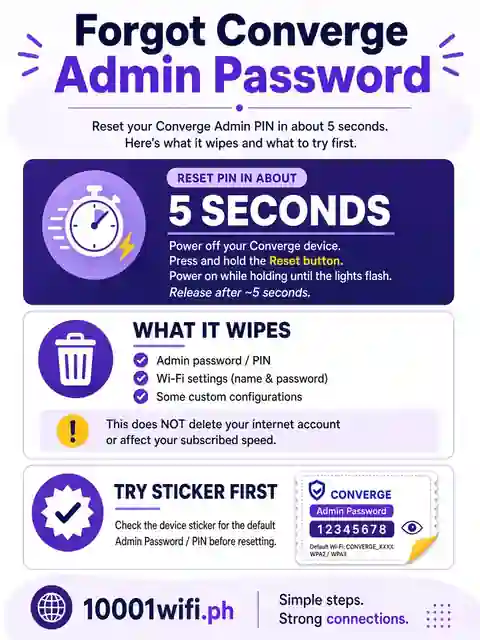
When the pair matrix and the failure order are exhausted, the reset is honest and final. Hold the recessed Reset button on the side or back of the unit for about 5 seconds, until the lights blink and the unit restarts.
Factory state returns: the default pair for your vendor works again — and every custom setting is wiped, including your WiFi name and password (the sticker’s WLAN Key becomes your WiFi password again) and any settings Converge provisioned for your line.
Rebuild in this order: log in with the vendor default → set WiFi name + password (both bands) → change the admin password and write it down → Forget-and-rejoin every device. If the line itself does not come back, that is the provisioning side — call Converge support on (02) 8667-0850 (the hotline published in TechPilipinas’s guide) rather than resetting twice.
Converge WiFi Password Questions — Answered Short
What is the Converge default WiFi password?
There isn’t a shared one — yours is printed on the sticker at the bottom or back of your router, labelled WLAN Key, unique to your unit, sitting under the default WiFi names (SSIDs).
What is the Converge default admin username and password?
For Huawei units — the majority — root / adminHW, published in TechPilipinas’s guide. EG-series models may use the Ep-tier pairs; ZTE and FiberHome pairs vary by unit and batch. Brand first, then pair.
How do I change my Converge WiFi password on my phone?
The same steps as on a computer — connect to the Converge WiFi, open your vendor’s address (Huawei 192.168.100.1) in the phone’s browser, log in, and use Fast Setting (Huawei) or your vendor’s tab above. Rotate the phone to landscape; the panels were designed for wide screens.
Do I need to change both the 2.4 GHz and 5 GHz passwords?
Yes, if you want both networks on the new password — they are separate networks with separate keys. Huawei’s Fast Setting does both on one screen; the Advanced path and other vendors do them one at a time.
Why won’t 192.168.100.1 open?
Usually because your device isn’t connected to your Converge network — the panel answers only from inside it. Also try the http:// prefix, a different browser, or an incognito window. And if your unit is a ZTE or FiberHome, 100.1 was never its address: yours is 192.168.1.1.
I forgot my Converge admin password. What now?
Work the failure order (right door → Ep tiers on EG models → ask whoever set it up), then the reset: ~5 seconds on the Reset button restores the factory pair — and wipes every custom setting, so rebuild the WiFi name and password right after.
Sources and status: TechPilipinas’s 2026 Converge guide (Huawei root/adminHW, Fast Setting + Advanced paths, WLAN Key sticker, reset ~5 seconds, forget-network, hotline) — the floor this page builds on; wikiHow’s Converge guide (three-vendor methods, Cisco blank-username tip, ZTE user/user tip, FiberHome menu name); r/InternetPH subscribers (the not-on-the-router sticker problem, Ep-tier pairs, F670L variance, the intruder motive); Ahrefs export for Converge’s SSPR portal (the cluster’s measured shape, October 2026); the topnotcher / brodneil / nyongesa concurrence (ZTE’s two-screen structure and the FiberHome pair set, October 2026).
One widely-copied app claim (a mesh-app password flow) is unverified against any Converge source and is deliberately not taught here. The telecomadmin master pair circulates in forums and is deliberately not published here — legitimate subscriber paths only.