 10001wifi.ph
How to Change Your WiFi Password — the Universal Method, Then Your Router’s Exact Page
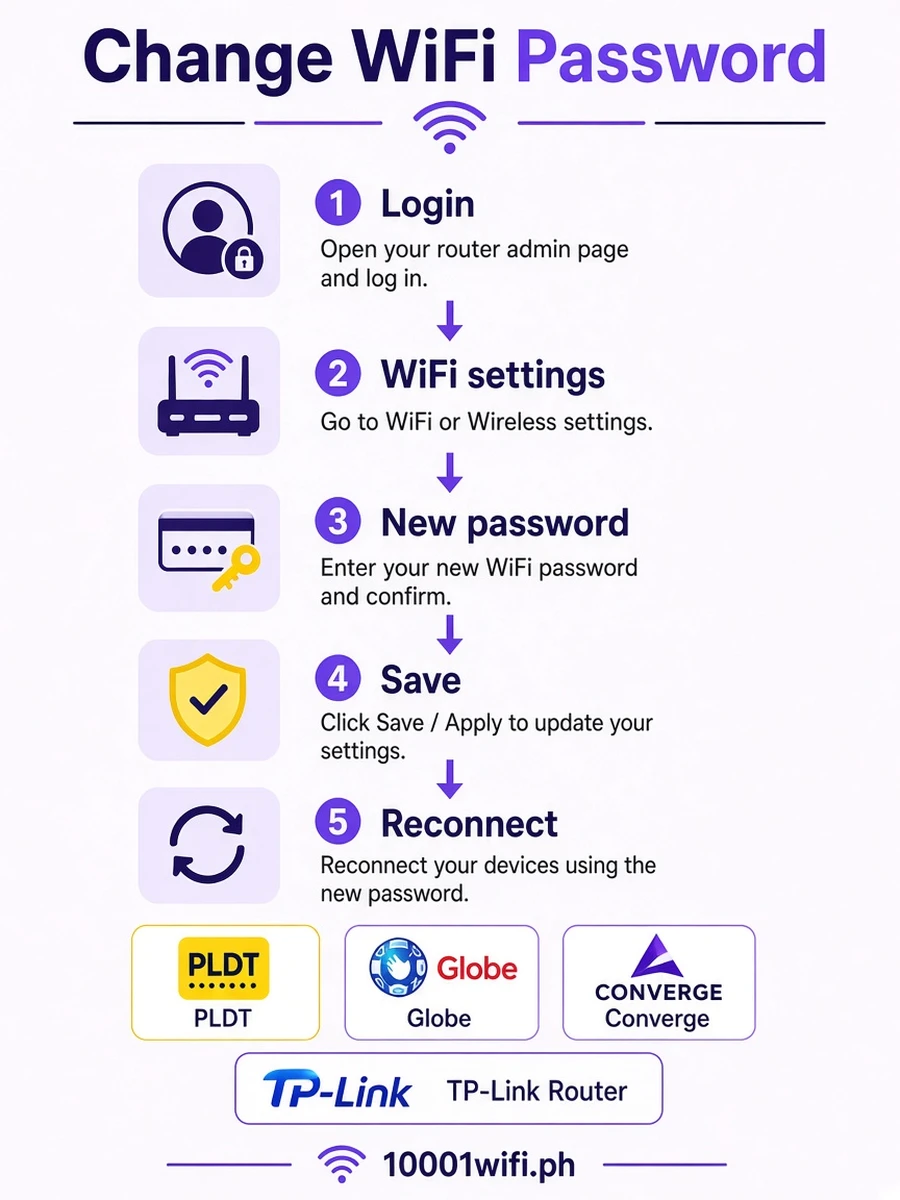
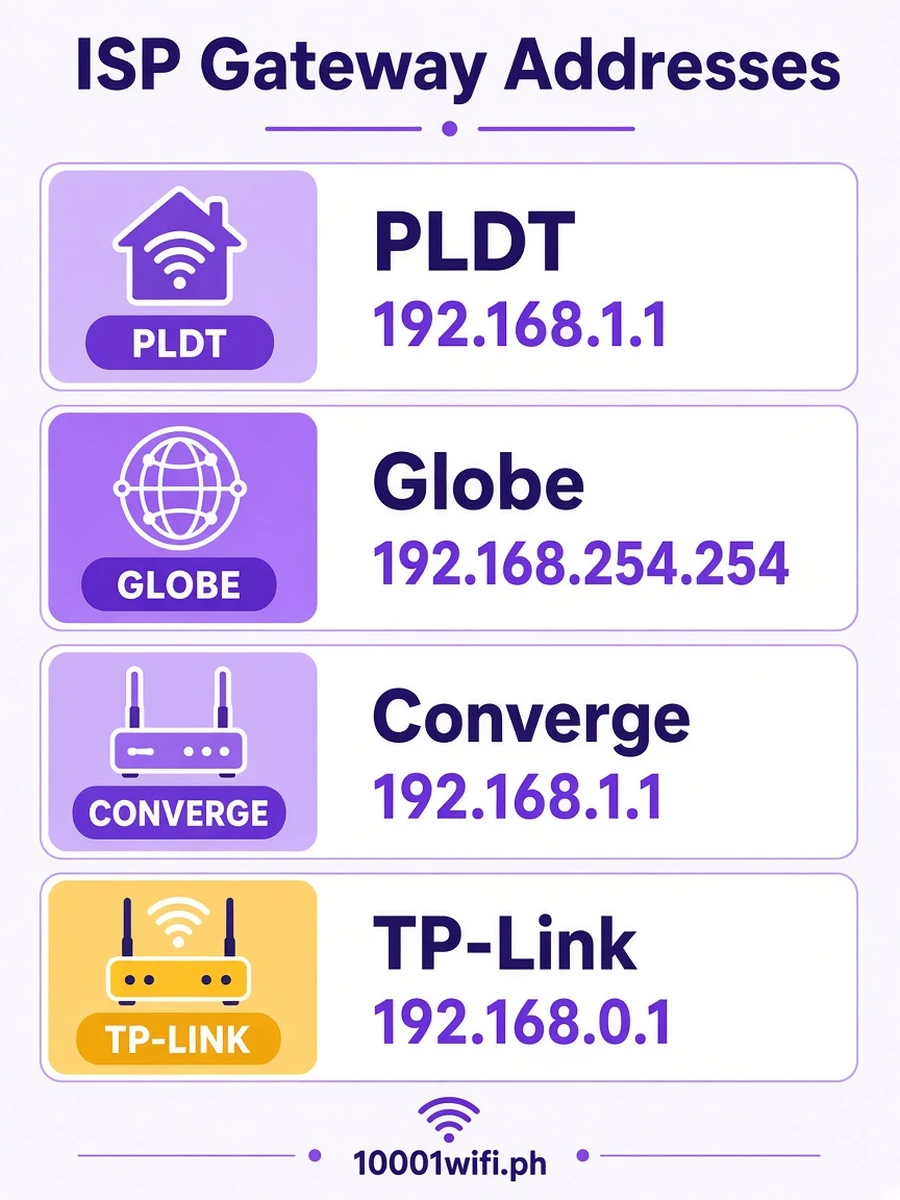
Every home router changes its WiFi password the same way: connect to the WiFi, open the router’s admin address — its default gateway, printed on the sticker (192.168.1.1 and 192.168.0.1 are the common ones) — log in with the admin pair, and set the new password in the Wireless or WLAN security settings for both bands, then Save or Apply and reconnect your devices. What changes per brand is only the door, the login and the field’s name, so this page routes you: PLDT at 192.168.1.1, Globe at 192.168.254.254, Converge Huawei at 192.168.100.1, TP-Link at tplinkwifi.net. Remember that the admin password and the WiFi password are different credentials.
Can you do it yourself? Yes — no technician, no fee, no ISP call; about five minutes inside your own router’s panel. The only gate is the admin login, and the brand guides below exist for exactly that. The method is universal; only the door, the login and the field’s name change per router.
Connect to the WiFi, open the router address on its sticker — 192.168.1.1 and 192.168.0.1 are the common ones — log in, and set the new password under Wireless or WLAN security for both bands. Save, then reconnect every household device once.
The Universal Method — 7 Steps That Fit Every Router
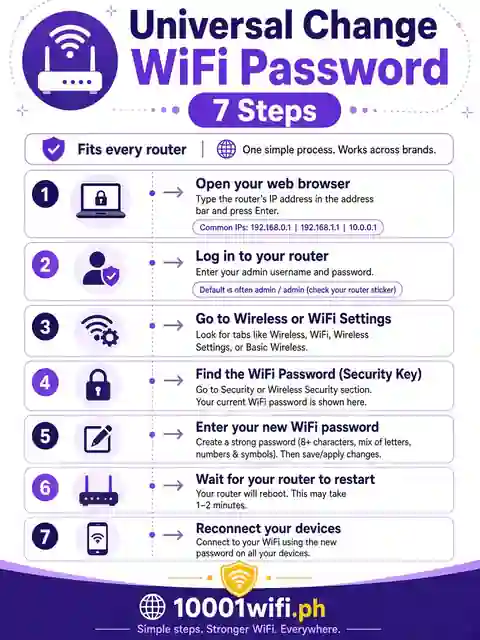
Step 1 — Connect to the Router (WiFi, or Plug In and Skip the Password Entirely)
Join the WiFi you’re changing — or, if you don’t know the current WiFi password at all, plug a computer into a LAN port with an Ethernet cable. A wired connection reaches the admin panel without any WiFi password (D-Link’s own guide states this plainly, and it holds across brands). It’s also the connection that can’t drop you in Step 6.Step 2 — Find the Door and the Login on the Sticker
The label on the bottom/back of the router carries its admin address (192.168.1.1, 192.168.0.1, 192.168.254.254, 192.168.100.1 and tplinkwifi.net are the Philippine regulars) and, on most units, the default admin login. Photograph it before you start. One Philippine exception, documented on our Converge pages: Converge stickers carry the WiFi details but often not the admin pair — the brand table below covers that case.Step 3 — Open the Address and Log In
Type the address into your browser’s address bar (not a search box) and enter the admin login. Stuck at this door — wrong pair, created-password era, warning screens? Each brand’s login page exists precisely for that: PLDT · Globe · Converge · TP-Link.Step 4 — Find the Wireless Security Screen
Inside the panel, hunt for a menu named Wireless, Wi-Fi, WLAN, Wi-Fi Settings or Wireless Security (ZTE panels start from Network). The password lives there, next to the network name (SSID).Step 5 — Set the New Password — It Wears Five Different Names
The box you want is labelled, depending on brand: Pre-Shared Key (PLDT, Huawei) · WPA Passphrase (ZTE) · WPA PreSharedKey (Converge Huawei) · Security Key (Tenda) · Wireless Password (newer TP-Link). Same box, five name tags — knowing all five is the difference between a two-minute job and a lost half-hour. Type the new password, and set it identically on both bands (2.4 GHz and 5 GHz) unless you deliberately run them differently. If your panel offers a single field under Smart Connect (or band steering), that one field drives both bands — set it once. Check the security type while you’re here: WPA2 minimum, WPA3 if offered.Step 6 — Press Save/Apply — and Know What Happens Next
The moment you apply, every wireless device drops — including the phone or laptop you’re changing it from, if it’s on WiFi (a wired device sails through — Step 1’s quiet advantage). Some panels apply instantly; Tenda’s flow ends with an explicit reboot; PLDT’s wizard-style units may log you out of the panel. None of that is an error. Warn the household before this step, not after.Step 7 — Reconnect Everything, in a Sensible Order
You first (the new password, on the device in your hand) → the household’s phones and laptops → TVs and computers → smart-home devices (cameras, plugs, speakers may need the new password entered inside their own apps) → guests, last and deliberately — a password change is also how you retire old shares.
Skip to Your Router — Door, Login, Password Field, Full Guide
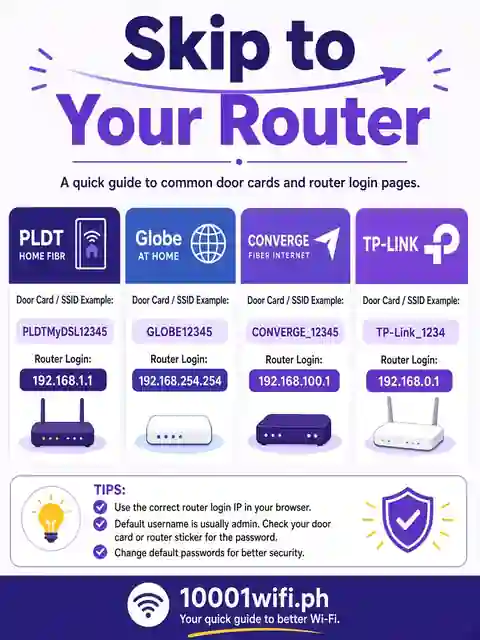
| Your router / ISP | Open | Log in with | The field is called | Full guide |
|---|---|---|---|---|
| PLDT (FiberHome / Huawei / ZTE) | 192.168.1.1 | admin / 1234 | Pre-shared Key | PLDT guide → |
| Globe (GFiber / Home Prepaid) | 192.168.254.254 | Sticker pair (user tier changes WiFi) | WPA Passphrase field, WiFi Security Settings | Globe guide → |
| Converge — Huawei | 192.168.100.1 | root / adminHW | Set in Fast Setting (both bands) | Converge guide → |
| Converge — ZTE / FiberHome | 192.168.1.1 | Your account tier (ladder on the guide) | WPA Passphrase | Converge guide → |
| TP-Link (your own router) | tplinkwifi.net / 192.168.0.1 | Password you created (older: admin / admin) | Password, under Wireless | TP-Link guide → |
| Mesh kit (TP-Link Deco, eero, Google Nest, Orbi) | No browser door that matters | The account the kit was set up with | Password, in the app’s Wi-Fi Settings | App route below — the app IS the panel |
| Tenda | 192.168.2.1 | admin (login password) | Security Key (Wireless > Security) — then reboot | Row-complete (Tenda’s official steps) |
| Don’t know the brand or door | Your sticker (Step 2) or our Gateway Finder | Gateway Finder → | ||
Changing It From Your Phone — Browser Route and the App Truth Table
The browser route works on any phone — Android and iPhone identically: connect to the WiFi, open the router address in Chrome/Safari, and follow the same 7 steps (rotate the phone sideways; these panels were built for wide screens). The app route depends on your ISP — and one famous app cannot do it:
| App | Can it change the WiFi password? |
|---|---|
| PLDT’s app | Yes — PLDT documents changing it in-app (the sanctioned no-panel path) |
| TP-Link Tether | Yes — full wireless settings from the phone |
| GlobeOne | No — Globe’s own pages route this task to the browser panel; GlobeOne manages your account, not the modem’s WiFi password |
| Converge app / SSPR portal | No — those handle your Converge account password; the router’s WiFi password changes only inside the modem panel |
| Mesh apps (Deco, eero, Google Home, Orbi) | Yes — and it’s the only route. These kits carry no full web panel; TP-Link’s own Deco guide states all steps use the app, not the web management page |
The mesh pattern is the same on every kit: open the app signed in with the account that set the kit up, find Wi-Fi / Network settings, tap the password field, Save. One consequence worth knowing before you start: if you are not that account holder, the kit cannot be re-keyed from your phone at all — that is by design, not a fault.
Just Want to SEE the Current Password? Check Before You Change
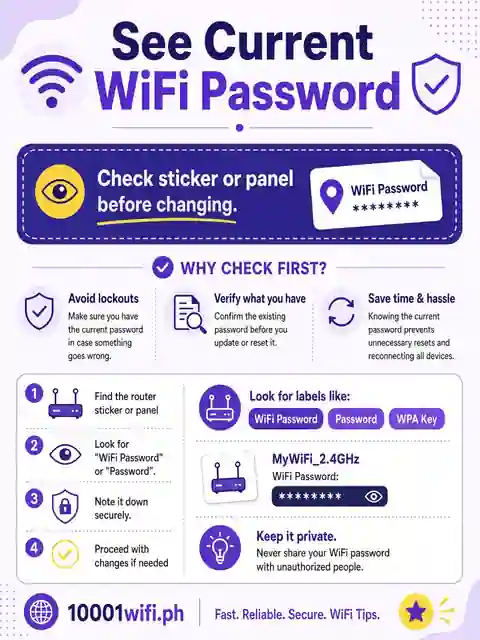
Some visits under “change” intent just want the existing password (a guest is asking). Two honest routes: on Huawei panels, the current password is visible at Wi-Fi Settings > Wi-Fi Basic Settings behind an eye icon — look before you leap. On other brands, a device that’s still connected is the practical route (your brand’s guide covers where, if anywhere, the panel reveals it — PLDT’s Basic tier shows the current key; TP-Link’s current panels generally don’t, which is itself worth knowing before you reset anything).
The New Password Itself — Strength, Security Type, and When a Change Is Due
- Strength: every panel’s hard floor is 8 characters; aim for a 12+ character passphrase — mixed case, a number, a symbol, nothing personal (no birthdays, addresses, or the household name). A phrase you can say beats a string you must write on the router.
- Security type: WPA2 is the minimum; WPA3 where offered. If an old device refuses WPA3, the WPA2/WPA3 transition mode (on most newer routers) lets both generations connect. Never WEP or plain WPA — they’re broken, not merely old.
- When a change is due — triggers, not a calendar: guests who no longer need access have left · an unknown device appears in your connected list · you’ve just moved in (or just installed — defaults are public knowledge) · unexplained slowdowns with no plan change · the password is still the factory/sticker one. Any one trigger is reason enough.
When It Goes Wrong — Forgotten Admin Password, Devices That Won’t Rejoin, Old Devices vs WPA3
- You forgot the ADMIN password (not the WiFi one): recovery differs per brand and era — TP-Link ID recovery before reset on TP-Link, sticker tiers on Globe, the ladder on Converge ZTE, the 171 call on PLDT. Your brand’s login page carries its own rescue order; follow that, not generic reset advice — a reset’s cost differs by ISP (on Converge it can cost the connection itself until re-provisioned).
- A device won’t rejoin after the change: make it forget the network, then join fresh with the new password — devices cling to the old credential. Smart devices that still sulk get re-onboarded in their own apps.
- An old device died at WPA3: switch the panel to WPA2/WPA3 transition mode (above) rather than downgrading everything; if one legacy device still refuses even then, WPA2-AES is the working floor that takes everything. The tell, first: the device claims “incorrect password” for a password you know is right — it is rejecting the method, not the text (a WPA2-era device meeting a WPA3-only network).
Two Safety Lines Worth the Ink
One scope line: Home Connect (from the search questions) is a Bosch/Siemens appliance platform, not an internet provider — a Home Connect WiFi question is about the appliance’s connection, managed in the Home Connect app, not in your router’s panel.
WiFi Password Questions — Answered Short
How do I change my home Wi-Fi password?
Connect to the router, open its sticker address (192.168.1.1 / 192.168.0.1 are the common ones), log in as admin, and set the new password under Wireless/WLAN security for both bands — then reconnect every device. The 7 steps above are the whole method; the table routes you to your brand’s exact version.
How to change Wi-Fi password from phone?
Either in the phone’s browser (same steps — the panel doesn’t care what screen it’s on) or in an app that genuinely supports it: PLDT’s app and TP-Link Tether can; GlobeOne can’t (browser only); Converge’s app/SSPR is for the account password, not the router’s.
Can I change my Wi-Fi password myself?
Yes — that’s the normal way it’s done. No technician visit, no ISP call, no fee. You need only your router’s admin login; if that’s what’s missing, your brand’s login page is the unlock.
How do I change my Home Connect Wi-Fi password?
Home Connect is an appliance brand (Bosch/Siemens), not an ISP — the credential lives with the appliance and is managed in the Home Connect app’s device settings, not in your router. If what you actually want is your home WiFi’s password, the 7 steps above are it.
Does changing the WiFi password kick everyone off?
Yes — every wireless device disconnects at the moment you press Save/Apply, including yours if you’re on WiFi. That’s the point of the change (it retires every old connection at once), and devices rejoin with the new password. Wired devices are unaffected.
Will changing my WiFi password make my internet faster?
Not directly — your plan speed is unchanged. What it does is evict anyone using your connection without permission, so your full bandwidth goes to your own devices again; in households with unexplained slowdowns, that eviction is often the fix (TP-Link’s PH guide answers this question the same way, peak-hour congestion and all).
Sources and status: the universal skeleton (Google’s AI Overview) filled out from the per-brand evidence base of this site’s Wave 1 pages — PLDT official, Globe official, TechPilipinas + threads for Converge, TP-Link FAQs 87/73/3085/399 (OFFICIAL/PUBLISHED as labelled there); TP-Link PH blog 2315 (protocol ladder, triggers, transition mode, safety lines); D-Link UK’s official guide (wired bypass); Huawei support (nameplate + eye icon — OFFICIAL); Tenda’s official material page (192.168.2.1 row); the Indonesian 9-ways pages and their Ahrefs exports (regional format evidence only — provider enumeration, phone-first; zero PH keywords drawn). No cadence prescription and no breach statistics are asserted on this page.