 10001
10001192.168.0.1 – Login Admin
192.168.0.1 is a private gateway address — in Philippine homes it is the retail-router door: TP-Link‘s main address, and the default for many D-Link, Tenda and some Netgear routers. Open it in the address bar while connected to the router and sign in with the admin password created at setup; older units use their printed defaults — admin / admin on TP-Link, admin with a blank password on D-Link, admin / password on Netgear. If 192.168.0.1 does not load, your unit’s gateway is different (PLDT and Converge ZTE use 192.168.1.1, Converge Huawei uses 192.168.100.1, Globe uses 192.168.254.254) — and the address checker below tells you whether the form you typed is the real one.
Open 192.168.0.1 in your browser’s address bar while connected to the router: it is TP-Link’s main door and the default for many D-Link and Tenda routers — sign in with the password created at setup or, on older units, admin / admin.
The button opens the address in a new tab. It works only while you are connected to that router — nothing here detects or guesses your network.
Typed something slightly different?
Paste what you actually typed and get the verdict — corrected, a different router’s door, or not an address at all.
Whose Door Is 192.168.0.1 in the Philippines?
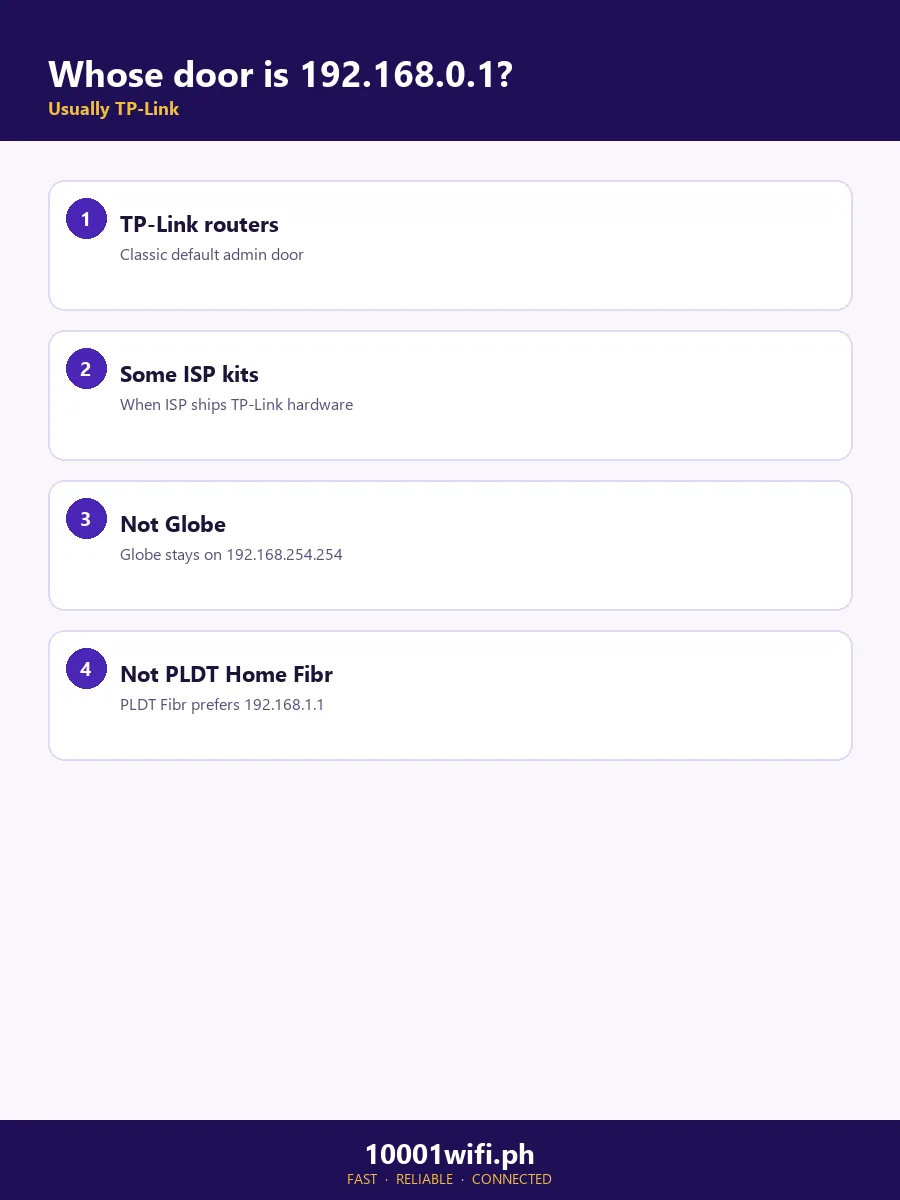
This address belongs to retail routers — the box you bought yourself, usually sitting behind your ISP’s modem. TP-Link’s own panel simulator (the WR841N emulator) lives at this address; it is the brand’s home door. Precisely: 192.168.0.1 belongs to whichever box is handing out your 192.168.0.x addresses — connect to a network and its gateway is that box, which is why the find-your-gateway lookup below settles every argument about whose door this is in your house.
| Your router | Door | First sign-in | Full guide |
|---|---|---|---|
| TP-Link (most add-on routers in PH homes) | 192.168.0.1 or tplinkwifi.net | The password created at first setup; admin / admin on older models | TP-Link admin login |
| D-Link | 192.168.0.1 (a few models: 192.168.1.1) | admin / (leave blank) | Sticker first — see below |
| Tenda | 192.168.0.1 or 192.168.2.1, or tendawifi.com | The password created at setup | Sticker first |
| Netgear | 192.168.0.1 on some models, 192.168.1.1 on many, or routerlogin.net | admin / password (classic) | Sticker first |
| Old Converge Cisco modem (legacy units) | 192.168.0.1 | (blank) / (blank) — reported for those units | Converge admin login |
Came here looking for your ISP modem instead? No current Philippine ISP uses 192.168.0.1 as its main door — you want one of these:
| Your provider | Your modem’s door | Guide |
|---|---|---|
| PLDT | 192.168.1.1 | PLDT admin login |
| Globe | 192.168.254.254 | Globe admin login |
| Converge (current) | 192.168.100.1 (Huawei) or 192.168.1.1 (ZTE) | Converge admin login |
How to Log In to 192.168.0.1
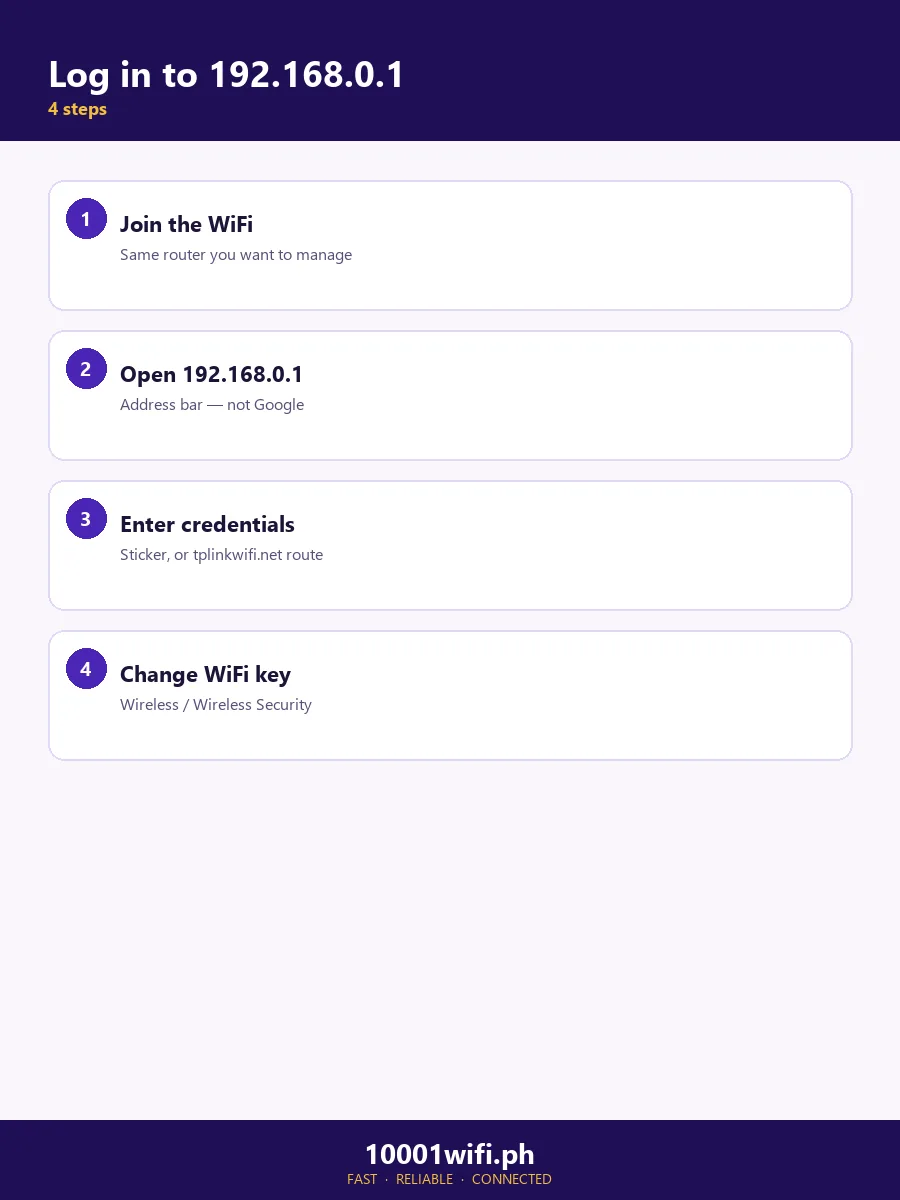
Connect to the router
Join its WiFi network or plug into a LAN port. The page only answers from inside the network — and if your phone is connected to the ISP modem’s WiFi while the retail router runs its own network, connect to the router’s own name instead.
Type the full address: http://192.168.0.1
In the address bar, not a search box — and type the http:// part in full. Router panels are http-only, and browsers that push every site to https can stall or warn here. If a “Not secure” or privacy warning appears, it is expected for a local panel: use Advanced → Proceed and you are at the login.
Sign in
Current TP-Link and Tenda units ask for the password created when the router was set up — there is no factory password to guess. Older units and other brands use the pairs in the table below, and the unit’s sticker beats every list, this one included.
You’re in
The jobs people come for — WiFi name and password, who’s connected, a guest network — are mapped in Inside the Panel below.
Default Usernames and Passwords for 192.168.0.1
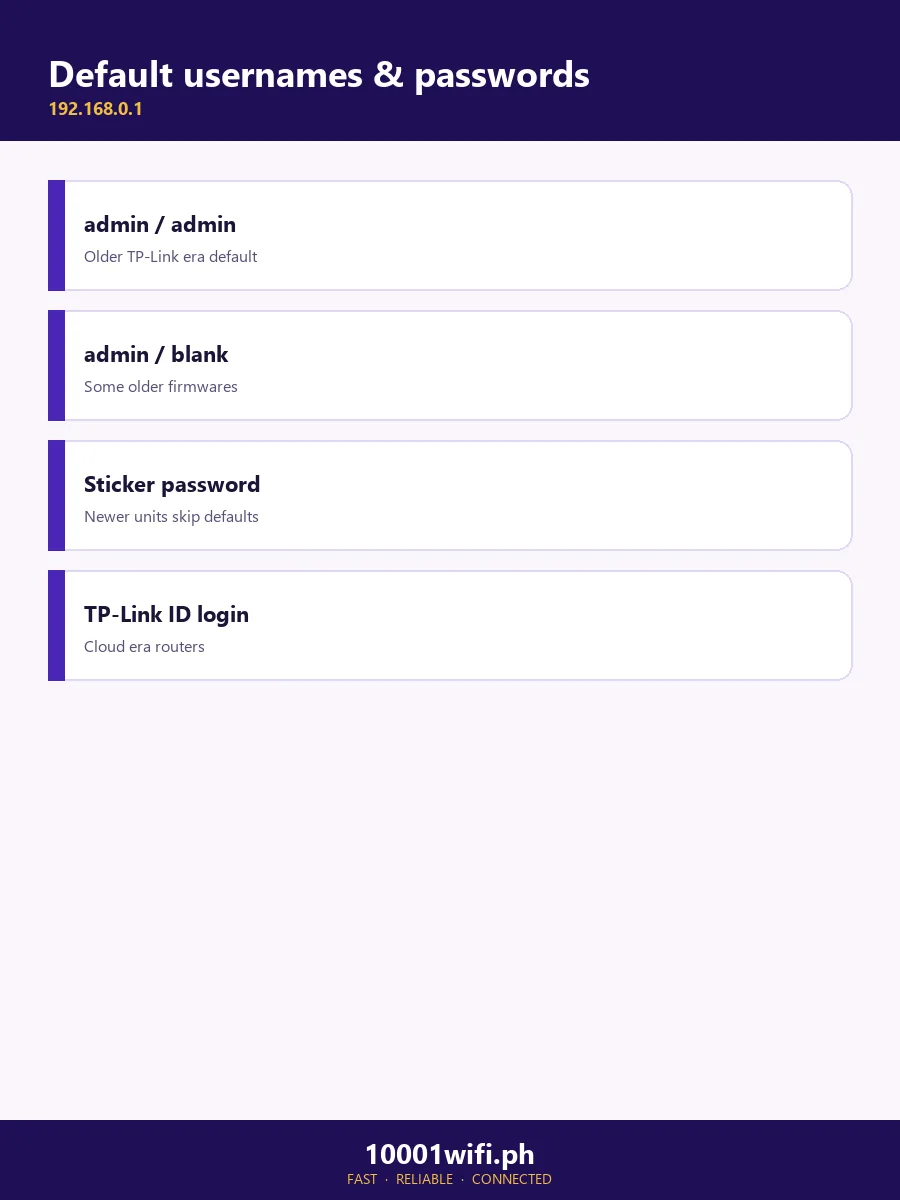
- TP-Link, older models: admin / admin. Current models: the setup-created password only.
- D-Link: admin / (leave the password blank).
- Netgear: admin / password.
- Tenda: the setup-created password on current units.
- Legacy Converge Cisco units: (blank) / (blank) — reported for those modems.
192.168.0.1 Won’t Open — or the Browser Blocks It
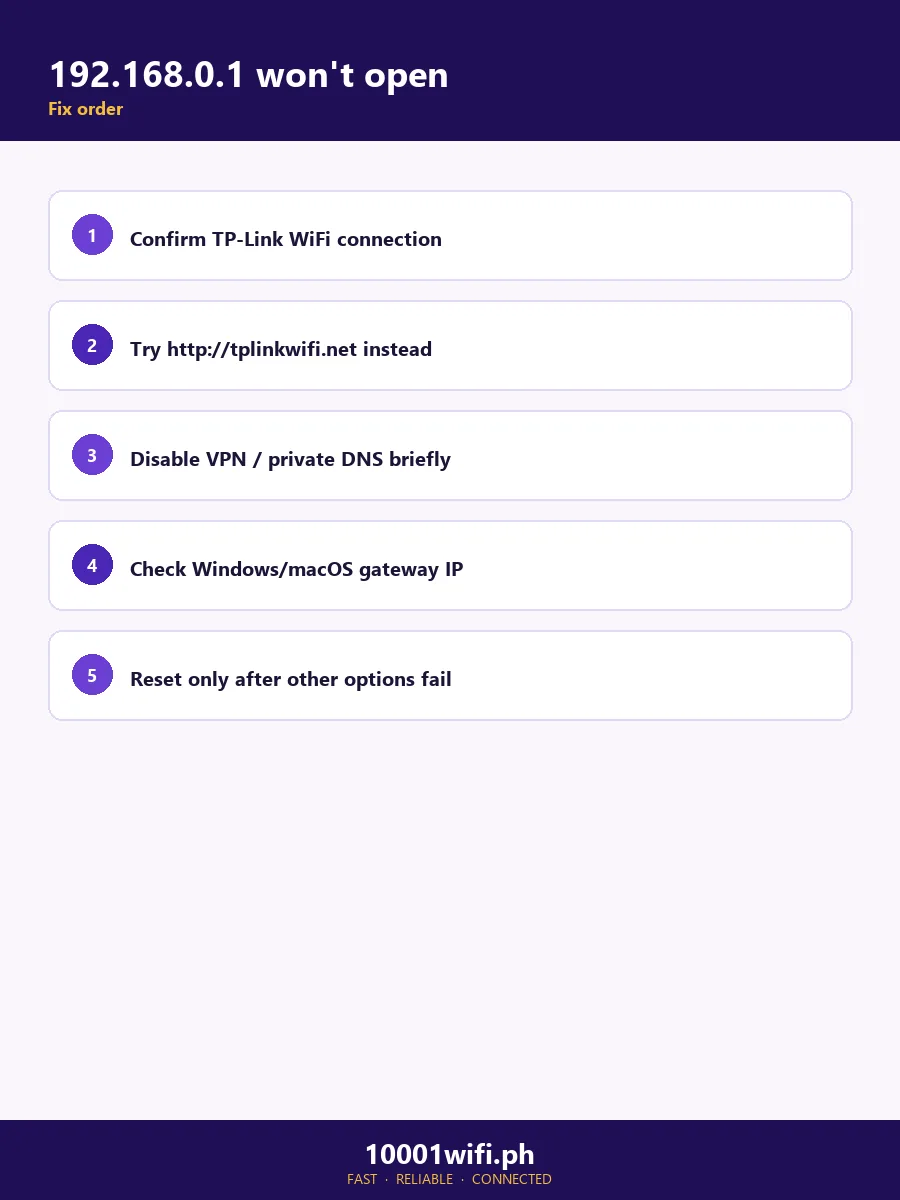
In check order:
- You’re on the wrong network. Connected to the ISP modem’s WiFi, mobile data, or a VPN? The retail router’s door only answers on its own network.
- You searched instead of typing. Results pages mean the search box got it. Retype in the address bar, ideally as the full http://192.168.0.1.
- Your door is a different address. ISP modem? Use the correction table above. Another brand’s default? The 192.168.1.1 hub covers the biggest sibling.
- The browser is blocking an http page. “Not safe,” “not secure,” an https error, or a page that spins: the panel speaks http only. Type the full http:// address; proceed past the warning (Advanced → Proceed); or use the brand’s own door — tplinkwifi.net or the Tether app for TP-Link.
- Your gateway was never 192.168.0.1. Some networks live on other subnets — one documented case had the gateway at 192.168.12.1 all along, and repeated factory resets changed nothing, because a reset cannot fix an address that was never yours. Find the real one below; if someone changed this router’s LAN address, the same lookup reveals it — a changed door is still your device’s Default Gateway, no reset needed.
- The router’s management page is dying. On ageing routers the admin page can stop answering weeks before the router itself fails — a pattern technicians report often. Try once wired after a restart; if it keeps refusing, save your settings if it ever opens and plan the replacement.
Find Your Router’s Real Address
- Windows: Command Prompt →
ipconfig→ Default Gateway. - Mac: System Settings → Wi-Fi → Details on your network → TCP/IP → Router.
- iPhone: Settings → Wi-Fi → ⓘ beside your network → Router.
- Android: Settings → Wi-Fi → your network’s details → Gateway/Router. On many Android builds, opening the network’s advanced/IP settings and viewing them as Static reveals the Gateway field directly.
- Linux: Terminal →
ip route→ the address after default via.
Or skip the menus: the Gateway Finder walks your device to the number, and the Credential Finder matches your exact model to its documented sign-in.
Inside the Panel: What You Can Change
| Job | Where it lives | Notes |
|---|---|---|
| WiFi name & password | Wireless Settings | The full method: change WiFi password · TP-Link: guide |
| The admin password itself | System Tools / Administration | The single most important change on a default-signed-in router |
| Who’s on your WiFi | Connected Devices / DHCP Clients | The answer to “is someone using my WiFi” — unknown names here are why most people log in |
| Guest network | Guest Network | Visitors get internet, not your devices |
| Parental controls | Parental Controls | Two kinds: filtering (block sites, set hours) and monitoring (see activity) — know which yours does |
| The router’s own address | LAN Settings | Moving it (say, to 192.168.0.2 to sit behind another router) moves your door — note the new address down |
| Firmware update | System Tools → Firmware | From the manufacturer’s file for your exact model and hardware version, uploaded on a wired connection |
Two routers, one house — read this before you troubleshoot. A retail router plugged into an ISP modem runs its own network (192.168.0.x) behind the modem’s network. That double layer (“double NAT”) is why the panel only answers on the router’s own WiFi, why some games and cameras complain, and why devices on the modem’s WiFi cannot see devices on the router’s. The tidy alternative is AP (access point) mode in the same panel: the router stops being a gateway, the modem hands out all addresses, and this 192.168.0.1 door closes — the router then lives at an address the modem assigned it. Switch modes knowingly, not by accident.
192.168.0.1 vs the Other Addresses
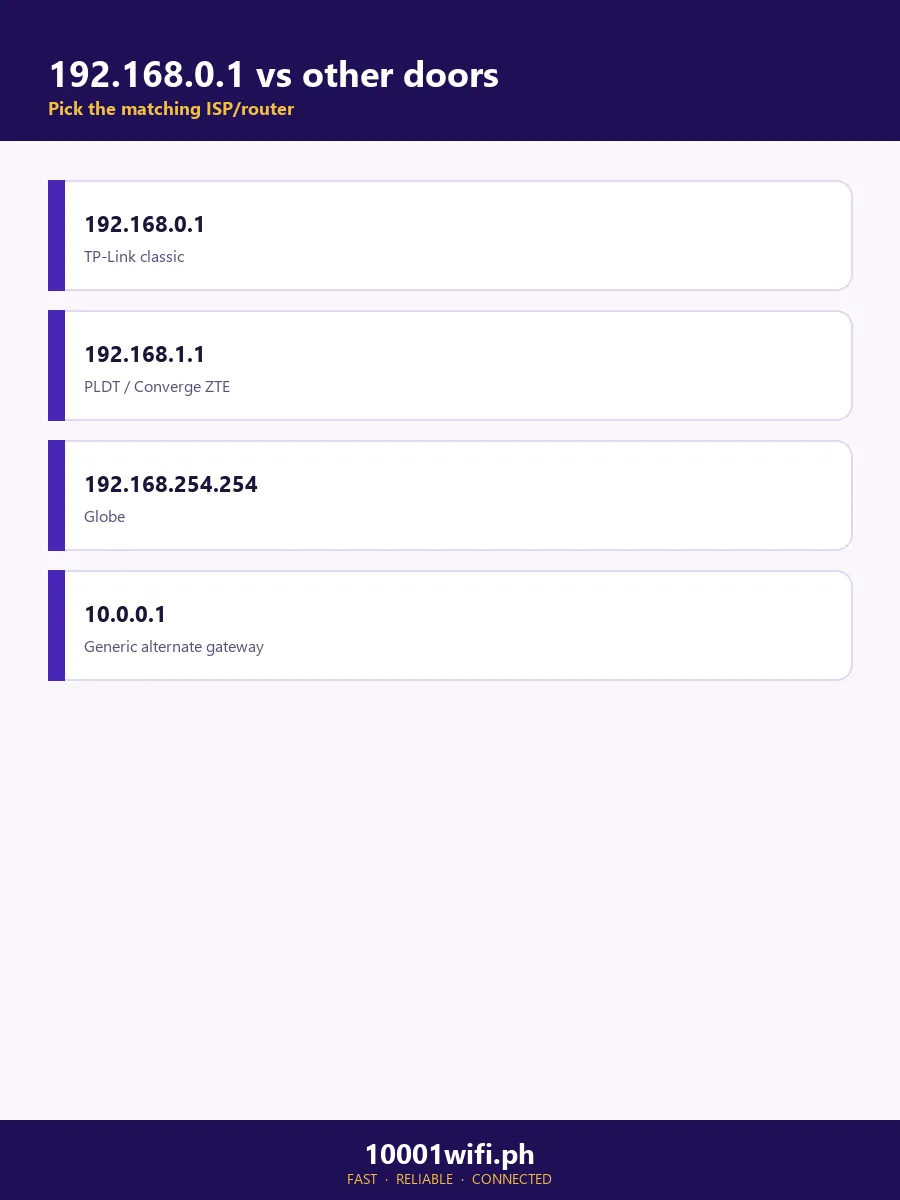
| Address | Whose door it is (PH) | Go there when |
|---|---|---|
| 192.168.1.1 | PLDT modems, Converge ZTE, many Linksys/Netgear | Your ISP box or those brands — the 1.1 hub |
| 192.168.100.1 | Converge Huawei modems | Converge subscriber on a Huawei unit |
| 192.168.254.254 | Globe modems | Globe subscriber, always |
| 10.0.0.1 | ISP gateways abroad; PH Piso WiFi portals | Rarely a PH home-router door |
| 192.168.2.1 | Some Tenda and Belkin models | The sticker says so |
FAQs
What is 192.168.0.1?
A private IP address (reserved for home and office networks under RFC 1918) that many retail routers — TP-Link above all, plus D-Link, Tenda and some Netgear models — use as their admin-panel door, the default gateway of the 192.168.0.x network.
Why does my browser say 192.168.0.1 is “not safe” or “not secure”?
Because the panel is served over plain http and your browser prefers https. For a page inside your own home network that warning is expected and harmless to proceed past: type the full http://192.168.0.1, and if a privacy warning appears choose Advanced → Proceed. It does not mean the router is hacked.
192.168.0.1 or 192.168.1.1 — which one is mine?
Whichever your device reports as its Default Gateway. As a rule of thumb in the Philippines: retail TP-Link/D-Link routers usually sit at 192.168.0.1, while PLDT modems and Converge ZTE units sit at 192.168.1.1. The sticker on the unit settles it.
What is the default password for 192.168.0.1?
There is no single one. Older TP-Link units use admin / admin, D-Link uses admin with a blank password, Netgear’s classic pair is admin / password — but current routers make you create the password at setup, and the sticker on your unit outranks every list.
192.168.0.1 won’t load at all. What now?
Work the check order: right network, address bar not search, full http:// typed, warning proceeded past. Then read your Default Gateway — if it isn’t 192.168.0.1, this was never your door, and no reset will change that.
Is 192.168.0.l or 192.168.0.1.1 a real address?
No. Addresses are digits and dots only: 192.168.0.l uses the letter L (the address meant is 192.168.0.1), and 192.168.0.1.1 has five groups — a valid IPv4 address has exactly four. Type 192.168.0.1.
Sources & Verification
Brand doors and defaults checked against manufacturer material (TP-Link’s official panel emulator sits at this address; TP-Link/D-Link/Tenda/Netgear documentation) and the Converge legacy-unit reporting gathered for our Converge pages. Browser-warning behaviour reflects current Chrome/HTTPS-first behaviour on local panels. The unexpected-subnet case (gateway at 192.168.12.1) and the ageing-router management pattern come from public owner threads, linked from our research notes. No percentage or “most common” claim on this page rests on another site’s say-so. Last reviewed: October 2026.